Adding a Dotted World Map to HubSpot Landing Pages
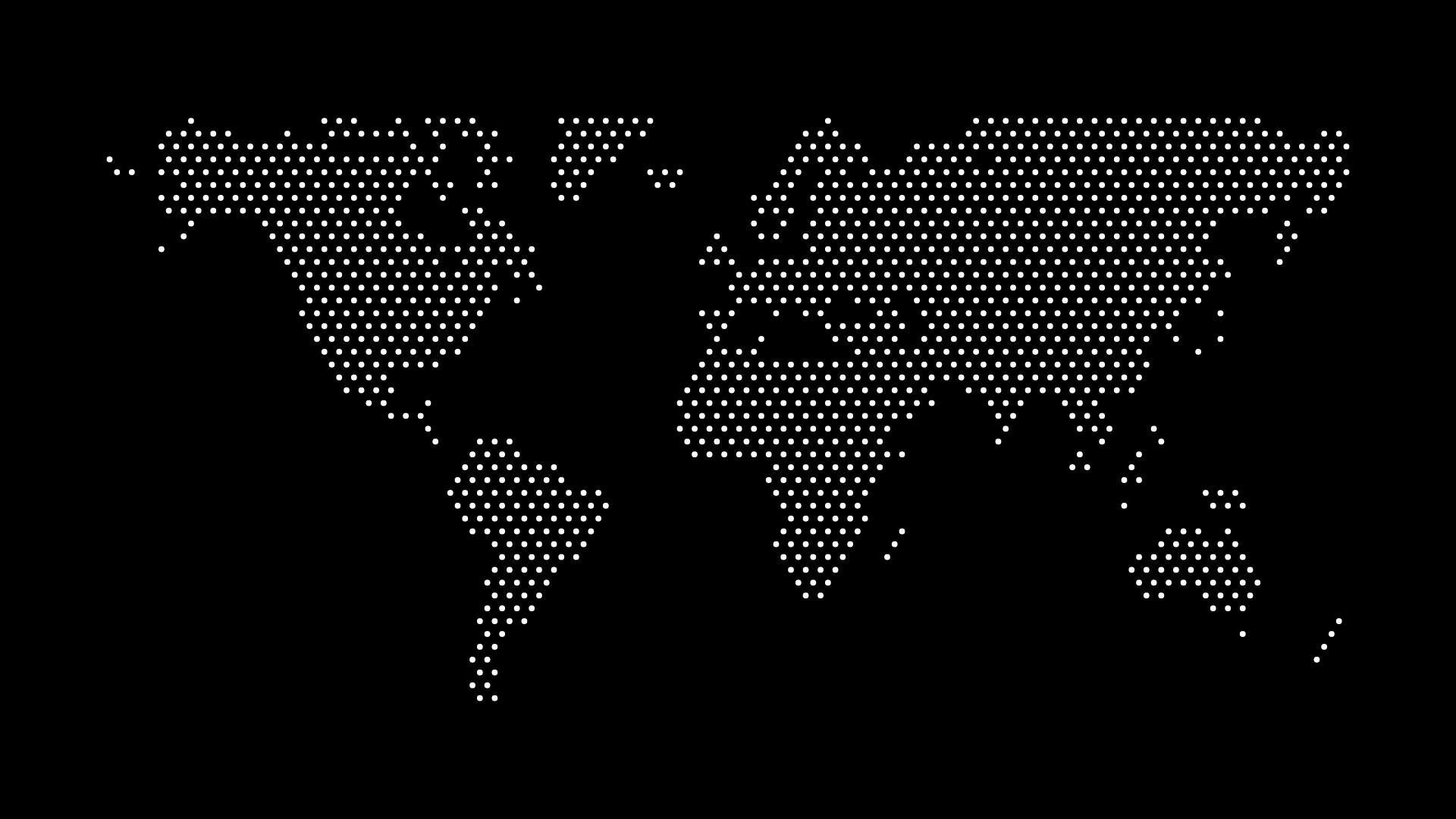
HubSpot landing pages are usually built inside drag-and-drop modules, which makes adding something as simple as a background image surprisingly fiddly the first time you try it — HubSpot's default modules expect stock photography, not a full-bleed vector graphic. Getting a dotted world map onto a HubSpot page cleanly takes a slightly different approach depending on whether you're using the standard page editor or a custom-coded template.
The good news is that a dotted map is one of the easiest custom graphics to add well, because it's forgiving of the cropping and responsive resizing that HubSpot's modules apply automatically — unlike a photo, there's no important subject that gets cut off awkwardly at different breakpoints.
Option 1: The Standard Page Editor (No Code)
If you're building the page in HubSpot's drag-and-drop editor without developer access, the fastest route is:
- Export your map from World in Dots as a PNG with a transparent or matching background.
- Upload it to HubSpot's File Manager.
- Add it as a background image on a section or row module, using the module's built-in "Background Image" setting rather than inserting it as an inline
<img>— this way HubSpot handles the responsive cropping and lazy loading for you automatically. - Set the background position to "center" and, if the module supports it, enable "no-repeat" so the map doesn't tile at smaller widths.
This gets you a working result in a few minutes, and it's the right choice for most marketers who don't want to touch the page's HTML at all.
Option 2: Custom Modules and Coded Templates
Teams with a developer maintaining custom HubSpot modules have more control, and it's worth using it. Export the map as SVG instead of PNG and embed it inline in the module's HTML rather than as a CSS background:
<div class="map-wrapper">
  {{ get_asset_url('/path/to/world-map.svg') | safe }}
</div>
Inlining the SVG (rather than referencing it as an <img src>) means you can target individual dot colors with your page's existing CSS, which matters if the map needs to match a brand palette that HubSpot's design manager already defines as CSS variables. It also means the map scales without the pixelation risk a PNG carries at large hero-section widths.
If the module is meant to be reused across multiple landing pages with different country highlights (say, a template for regional campaign pages), expose the SVG file path as a module field so marketers can swap maps without asking a developer to redeploy.
Where a Map Actually Helps Conversion
A dotted world map isn't decoration for its own sake — it's most effective on the specific pages where "how big is this company, really" is a live question in the visitor's mind:
- International expansion or "now available in your country" pages — a map answers the geography question immediately, before a visitor has to read a paragraph.
- Case study and customer proof pages — pairing a map with logos reinforces scale in a way text alone doesn't.
- Pricing pages for global products — especially useful if pricing or availability varies by region, since the map primes the visitor to expect that before they hit a region selector.
This overlaps with why SaaS companies display global customer distribution on their own marketing sites — the reasoning is identical, HubSpot is just the delivery mechanism. If your landing page is specifically a pitch or investor-facing asset rather than a customer-facing one, the design considerations shift slightly; see dotted maps for investor decks for that variant.
Performance and Mobile Considerations
HubSpot's CMS scores pages on Core Web Vitals, and a poorly optimized background image is a common way marketers accidentally hurt their own page speed score. A few habits keep the map from becoming a liability:
- Compress before uploading. Run the PNG or SVG through compression before it goes into File Manager — see how to compress SVG maps for faster loading for the specific techniques, which apply the same way inside HubSpot's asset pipeline.
- Avoid full-bleed maps on mobile. A map designed for a wide desktop hero often loses all its detail once HubSpot's responsive breakpoints shrink it down. Test the module at HubSpot's mobile preview width and consider swapping to a cropped or simplified version below a certain breakpoint using a media query in the module's CSS.
- Don't stack it with autoplay video. Background maps pair badly with autoplaying hero video on the same section — pick one focal element per fold.
Final Thoughts
A dotted world map is one of the lowest-effort, highest-clarity additions you can make to a HubSpot landing page that's trying to communicate scale or reach. Whether you drop in a PNG through the standard editor or inline an SVG in a custom module, the map does the same job either way: it turns "we operate globally" from a claim into something visitors can see for themselves in the first three seconds on the page.