Adding a Dotted World Map to Obsidian Notes
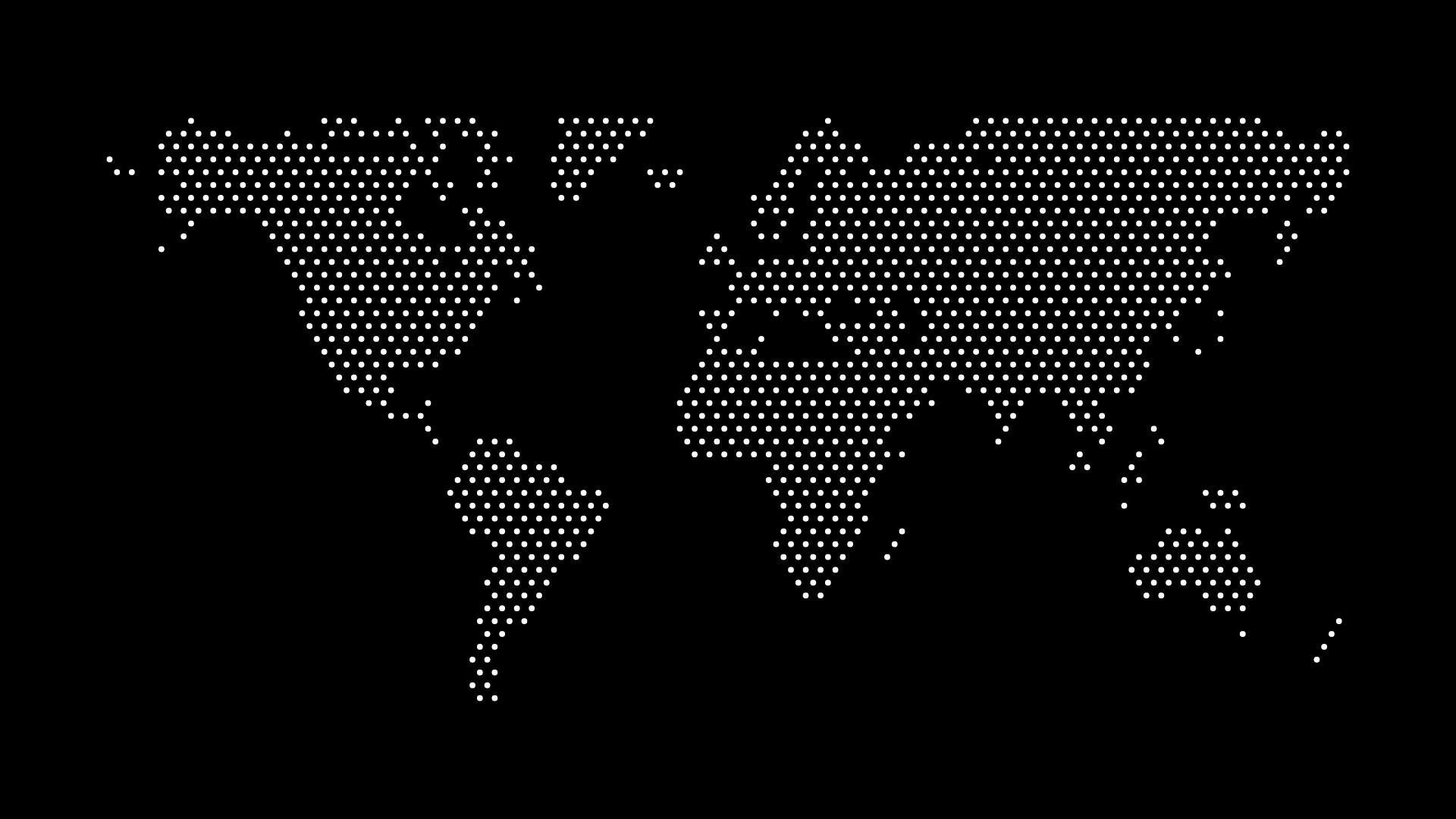
Adding a dotted world map to Obsidian notes works the same way any other image does in a vault — Obsidian just embeds local files by reference, so once the map is saved into your vault's folder structure, it displays inline wherever you link it. There's no special map plugin required for a static graphic; you only need one if you want the map to be interactive or data-driven, which is a different (and heavier) job than most vault use cases actually call for.
People reach for a world map inside Obsidian for a handful of recurring notes: a travel log tracking countries visited, a "second brain" page mapping out where past jobs, clients, or collaborators were based, or a digital-garden-style public note meant to give readers a quick geographic orientation.
Getting the File Into Your Vault
Obsidian resolves image links relative to your vault (or a configured attachments folder), so the map needs to live inside that folder structure before you can embed it:
- Generate and download your map as SVG or PNG.
- Drag the file directly into an open note in Obsidian, or place it in your vault's attachments folder using your file manager.
- Obsidian will auto-insert an embed link (
![[filename]]) if you drag-and-drop; otherwise, reference it manually with the same syntax.
SVG generally displays cleanly in Obsidian's editor and reading views, but if you plan to resize the embed with Obsidian's |width syntax (e.g. ![[world-map.svg|600]]), test that the map still reads clearly at your intended size — see scaling SVG maps without losing quality for why vector maps handle this better than a raster export would.
Where a Map Fits in a Vault
Travel logs. A dedicated note with a world map at the top, countries visited noted underneath or marked directly on the map before export, works as a quick visual index that's faster to scan than a bullet list — similar in spirit to the ideas in creating countries visited maps for travel blogs, just kept inside a private vault instead of published to a blog.
Work and career notes. A map showing where past roles, clients, or teams were based gives a "career map" note more visual texture than a plain table, particularly useful if you maintain a work-history page you revisit or share.
MOCs (maps of content) with a geographic angle. If your vault organizes notes by region — research notes, contacts, or project references tied to specific countries — a dotted map at the top of the MOC gives readers (including future you) an immediate sense of geographic scope before they scroll into the linked notes.
Public digital gardens. If you publish your vault with a tool like Obsidian Publish or Quartz, an embedded SVG map renders the same way it does in the app, so a map built for a private note works without modification if you later decide to make that note public.
A Few Obsidian-Specific Notes
- Dark mode. Obsidian's dark theme doesn't automatically recolor embedded images, so a map with dark dots on a transparent background can disappear against a dark note background. Generate a version with a light dot color, or set an explicit background color, if your vault uses a dark theme by default.
- File size and vault sync. If you sync your vault (Obsidian Sync, iCloud, or a git-based setup), an SVG is typically far smaller than an equivalent high-resolution PNG, which matters more the larger your vault attachments folder grows.
- Canvas embeds. If you're using Obsidian's Canvas feature to lay out a visual board rather than a linear note, the same SVG or PNG file drops in as a card exactly like it would in a standard note.
Compared to a Full Map Plugin
Obsidian's community plugin library includes tools built for interactive, data-linked maps — plotting notes by geotag, for example. Those are worth using if you need markers tied to specific notes that update as your vault grows. For a static illustration — a travel-log header, a work-locations graphic, a visual anchor at the top of an MOC — a plain SVG embed is simpler to set up and doesn't add a plugin dependency to maintain. If your use case is closer to a workspace wiki than a personal vault, the same static-embed approach applies to adding a dotted world map to Confluence pages or SVG maps to Notion pages.
Generate Your Map
Build your map in the dotted map generator — pick the world view or a specific region, choose colors that hold up in both light and dark themes, and export as SVG. If your note is tracking a personal journey rather than a static reference, building a digital nomad journey map has more ideas for marking specific stops along the way.