Adding Interactive Hover Effects to Your SVG Maps
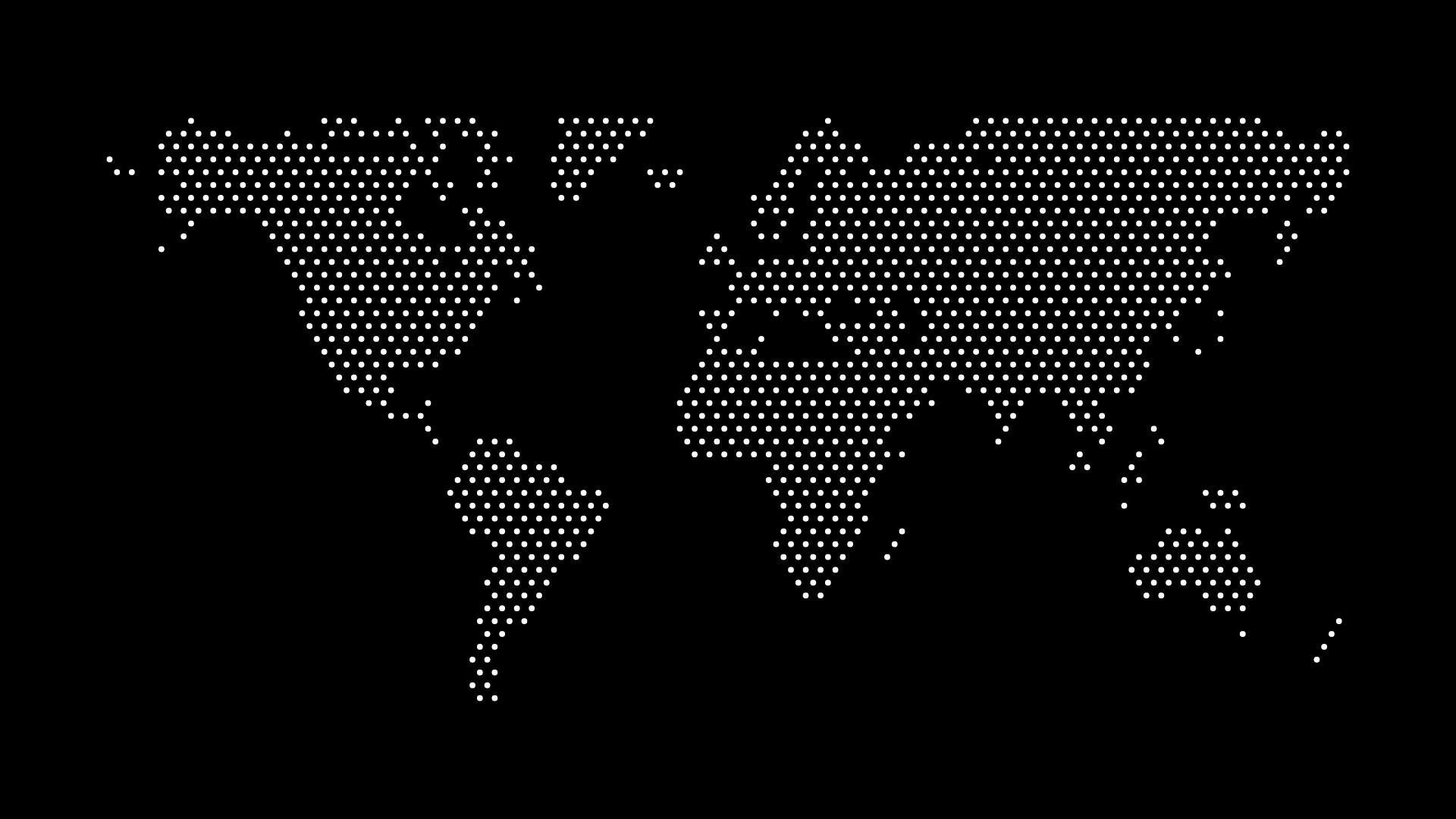
Interactive hover effects transform static SVG maps into engaging, user-friendly experiences. Whether you're building a dashboard, data visualization, or interactive website, hover effects help users explore geographic information intuitively.
In this guide, we'll cover everything you need to know about adding hover effects to SVG maps — from simple CSS transitions to advanced JavaScript interactions.
Why Add Hover Effects?
Hover effects enhance user experience by:
- Providing Feedback — Users know what's clickable or interactive
- Showing Information — Display tooltips with region names or data
- Guiding Exploration — Highlight related areas or connections
- Adding Polish — Professional interactions that impress users
- Improving Accessibility — Visual cues for interactive elements
Basic CSS Hover Effects
Simple Color Change
svg .country {
  fill: #333333;
  transition: fill 0.3s ease;
  cursor: pointer;
}

svg .country:hover {
  fill: #0077ff;
}
Scale and Highlight
svg .country {
  fill: #e5e7eb;
  stroke: #ffffff;
  stroke-width: 1;
  transition: all 0.2s ease;
}

svg .country:hover {
  fill: #3b82f6;
  stroke: #1e40af;
  stroke-width: 2;
  transform: scale(1.02);
}
Dot Map Hover Effects
svg .dot {
  fill: #666666;
  opacity: 0.7;
  transition: all 0.2s ease;
}

svg .dot:hover {
  fill: #ef4444;
  opacity: 1;
  r: 4; /* Increase dot size */
}
Adding Tooltips with CSS
Pure CSS Tooltip
<svg>
  <g class="country-group">
    <path class="country" d="..." />
    <text class="tooltip">United States</text>
  </g>
</svg>
.tooltip {
  opacity: 0;
  pointer-events: none;
  font-size: 12px;
  fill: #ffffff;
  background: #000000;
  transition: opacity 0.2s;
}

.country-group:hover .tooltip {
  opacity: 1;
}
JavaScript-Powered Tooltips
Simple JavaScript Tooltip
<svg>
  <path class="country" data-name="United States" data-population="331M" d="..." />
</svg>

<div id="tooltip" style="display: none; position: absolute;"></div>
const countries = document.querySelectorAll('.country');
const tooltip = document.getElementById('tooltip');

countries.forEach(country => {
  country.addEventListener('mouseenter', (e) => {
    const name = e.target.getAttribute('data-name');
    const population = e.target.getAttribute('data-population');

    tooltip.innerHTML = `
      <strong>${name}</strong><br>
      Population: ${population}
    `;
    tooltip.style.display = 'block';
  });

  country.addEventListener('mousemove', (e) => {
    tooltip.style.left = e.pageX + 10 + 'px';
    tooltip.style.top = e.pageY + 10 + 'px';
  });

  country.addEventListener('mouseleave', () => {
    tooltip.style.display = 'none';
  });
});
Advanced Hover Interactions
Highlight Related Regions
const regions = {
  'north-america': ['united-states', 'canada', 'mexico'],
  'europe': ['france', 'germany', 'italy', 'spain']
};

document.querySelectorAll('.country').forEach(country => {
  country.addEventListener('mouseenter', (e) => {
    const region = e.target.getAttribute('data-region');
    const related = regions[region] || [];

    // Highlight related countries
    related.forEach(id => {
      const relatedCountry = document.getElementById(id);
      if (relatedCountry) {
        relatedCountry.classList.add('highlighted');
      }
    });
  });

  country.addEventListener('mouseleave', () => {
    document.querySelectorAll('.highlighted').forEach(el => {
      el.classList.remove('highlighted');
    });
  });
});
.country.highlighted {
  fill: #fbbf24;
  opacity: 0.8;
}
Animated Pulse Effect
@keyframes pulse {
  0% {
    r: 2;
    opacity: 1;
  }
  50% {
    r: 4;
    opacity: 0.7;
  }
  100% {
    r: 2;
    opacity: 1;
  }
}

svg .dot:hover {
  animation: pulse 1s infinite;
}
Best Practices
Performance
- Use CSS transitions instead of JavaScript when possible
- Debounce tooltip updates for rapid mouse movements
- Cache DOM queries to avoid repeated lookups
Accessibility
- Ensure hover effects work with keyboard navigation
- Provide focus states for keyboard users
- Use ARIA labels for screen readers
User Experience
- Keep transitions smooth and fast (0.2-0.3s)
- Make hover states clearly visible
- Don't rely solely on hover — provide click interactions too
Common Patterns
Dashboard Map
.dashboard-map .country {
  fill: #e5e7eb;
  transition: all 0.2s;
}

.dashboard-map .country:hover {
  fill: #3b82f6;
  stroke: #1e40af;
  stroke-width: 2;
}

.dashboard-map .country.active {
  fill: #1e40af;
}
Data Visualization Map
// Color by data value on hover
country.addEventListener('mouseenter', (e) => {
  const value = parseFloat(e.target.getAttribute('data-value'));
  const color = getColorForValue(value);
  e.target.style.fill = color;
});
Interactive Story Map
// Show story content on hover
country.addEventListener('mouseenter', (e) => {
  const storyId = e.target.getAttribute('data-story');
  showStoryContent(storyId);
});
Final Thoughts
Adding interactive hover effects to your SVG maps creates engaging experiences that help users explore geographic data naturally. Whether you use simple CSS transitions or complex JavaScript interactions, hover effects make maps feel alive and responsive.
Start with a clean SVG map from World in Dots, then layer on your hover effects to create something unique. The combination of vector graphics and modern web technologies gives you endless possibilities.
Ready to make your maps interactive? Generate your SVG map and start adding hover effects today.