Adding SVG Maps to Miro Boards
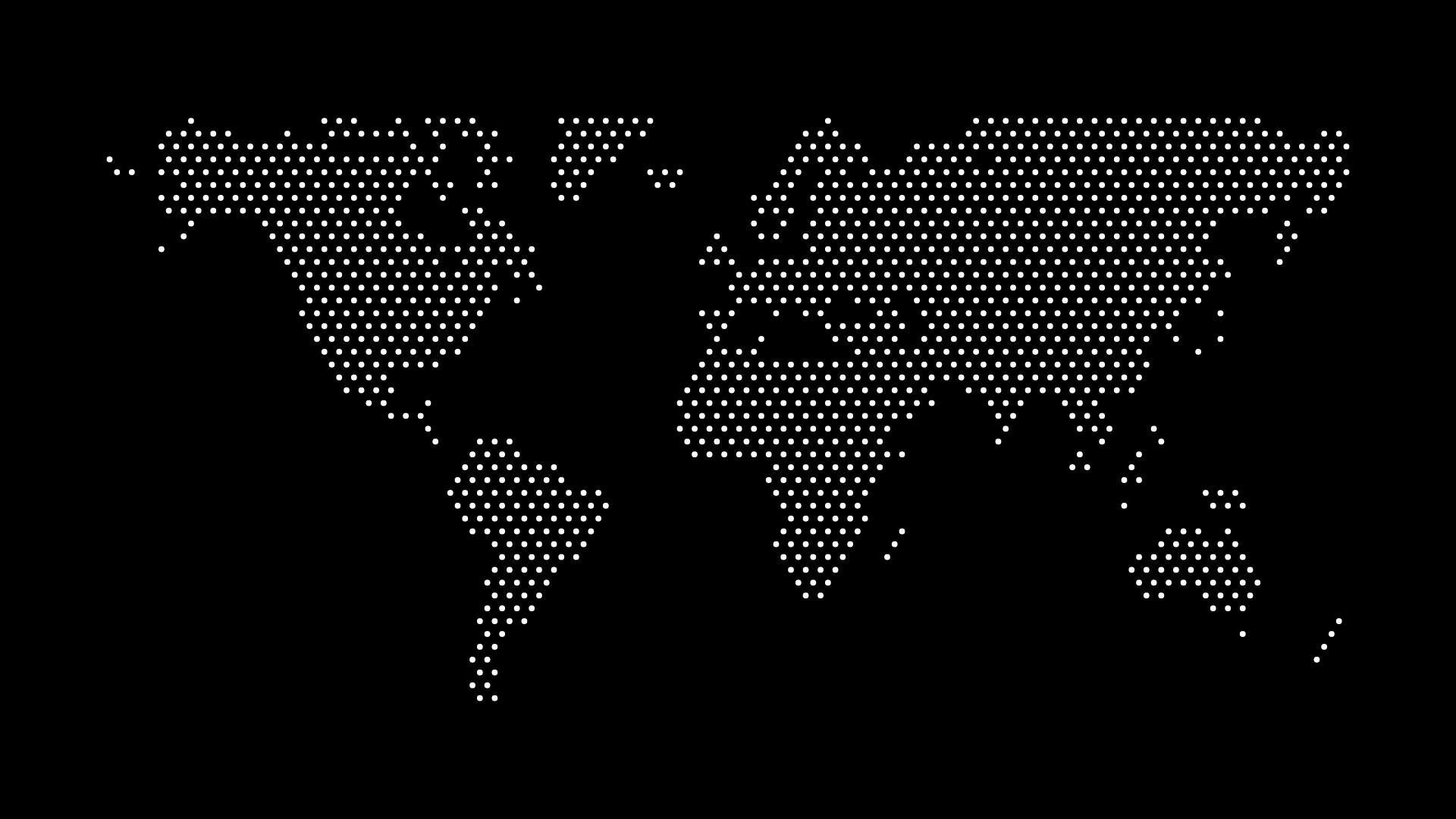
Miro is where teams plan, brainstorm, and map out ideas together — so a clean geographic map can be a powerful addition to a board. Whether you're planning market expansion, mapping team locations, or running a workshop, a dotted map from World in Dots drops right in.
This guide shows how to add SVG maps to Miro boards and use them collaboratively.
Why Use Maps in Miro
- Visual planning — anchor location-based discussions to a real map
- Collaboration — sticky notes and arrows on top of your geography
- Clean styling — minimal dotted maps don't clutter a busy board
- Always sharp — vector and high-res maps stay crisp as you zoom
How to Add a Map to Your Miro Board
Step 1: Generate the Map
In World in Dots, choose your region, style the dots and colors, and export. A PNG is the quickest to drop in; an SVG keeps it scalable.
Step 2: Upload to Miro
Drag the file directly onto your board, or use Upload → Image. Resize it to fit your workspace.
Step 3: Build On Top of It
- Add sticky notes for each location or market
- Draw arrows to show routes, expansion, or connections
- Use a transparent background export so the map blends with your board
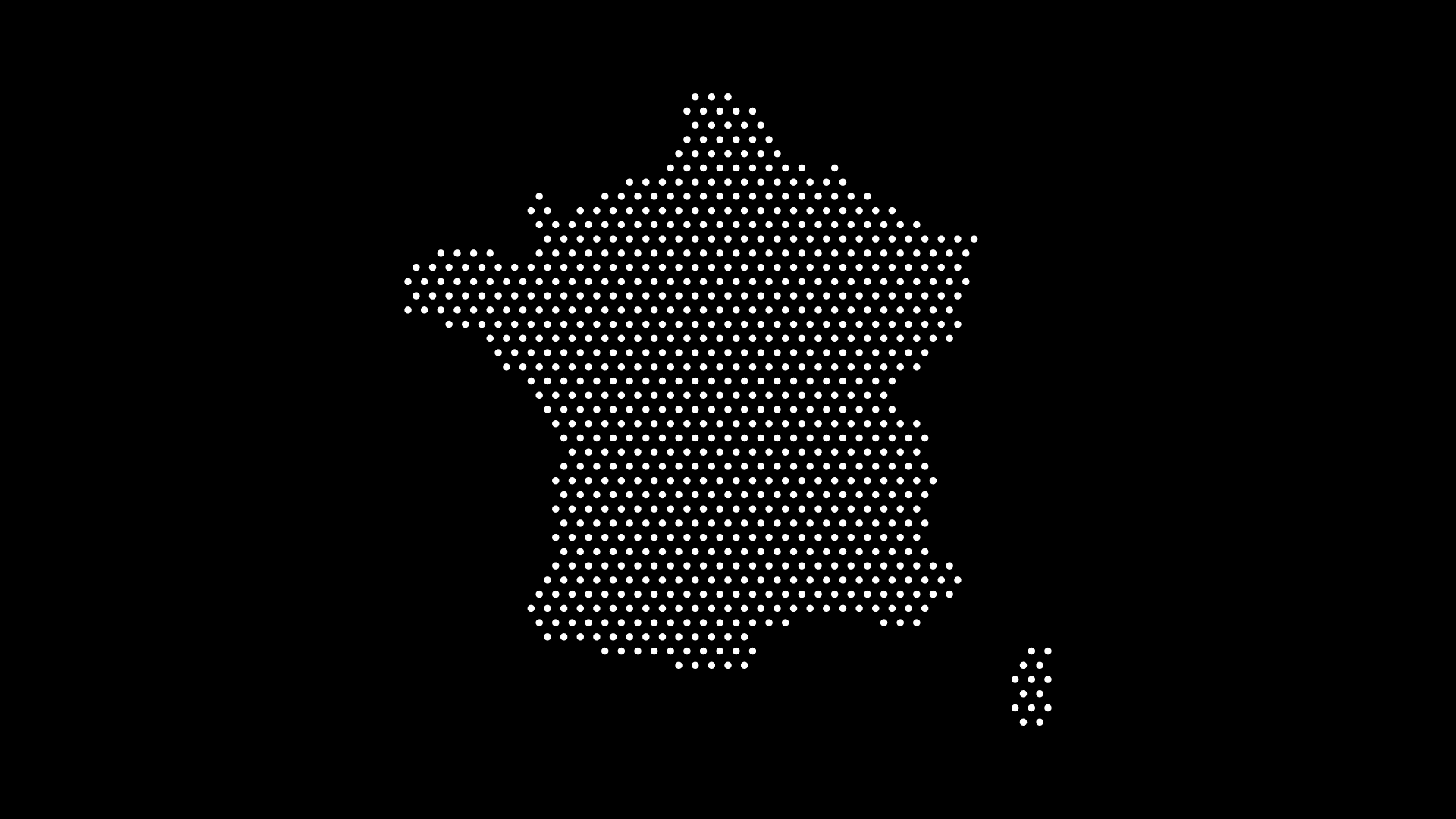
Collaboration Ideas
- Market expansion planning — pin priorities city by city
- Team mapping — show where a distributed team is based
- Customer journeys — connect locations across a region
- Workshops — a shared geographic canvas for any exercise
Final Thoughts
Adding an SVG map to Miro gives your team a clean, shared geographic canvas for planning and collaboration. With World in Dots, you can generate the perfect map in seconds and bring it straight into your board.
Create your map today and add it to your next Miro session.