Adding SVG World Maps to Sketch Designs
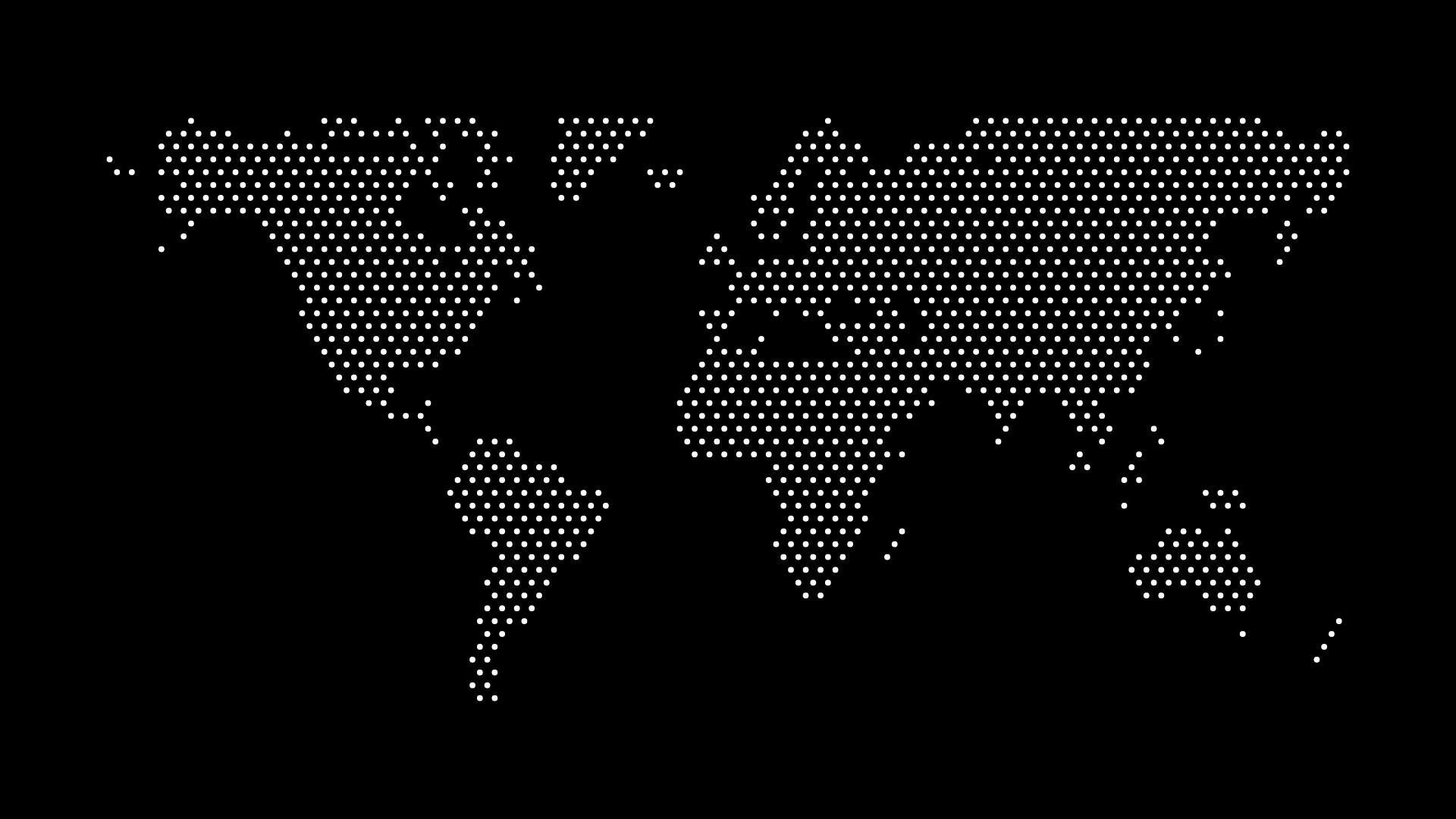
SVG world maps in Sketch import as native, fully editable vector layers, which makes Sketch one of the more straightforward apps to design with a dotted map in — provided you set it up as a reusable piece rather than a one-off paste.
Sketch is still the primary tool for a meaningful share of Mac-based product and UI teams, and unlike a photo or PNG background, a map you drop into a Sketch file needs to survive resizing across artboards, dark and light variants, and however many marketing pages reuse it.
Import the SVG cleanly
Drag the SVG file directly onto the canvas, or use Insert > Image and choose the SVG. Sketch converts it into a standard layer group made of vector shapes, so every dot is still a real path you can select, nudge, or delete individually.
Two things to check right after import:
- Flatten unnecessary groups. Some exports nest each dot inside its own sub-group. If you plan to recolor the whole map at once, select the top-level group and use
Layer > Flatten Selection(or keep it nested if you want per-region control). - Check the bounding box. Because dot maps have irregular, non-rectangular silhouettes, the layer's bounding box is often much bigger than the visible dots. Resize by the artboard, not by eyeballing the layer handles.
Turn it into a Symbol
If the map appears on more than one page — a homepage hero, an About page, a pitch deck export — converting it into a Symbol (Create Symbol from the right-click menu) means every instance updates when you edit the master. This is the single biggest time-saver over pasting a flat SVG onto every artboard by hand.
Inside the Symbol, expose the fill color as an Override so each instance can use a different accent color without duplicating the master. This is especially useful if you're running the same map in a light-mode and dark-mode version of a page.
Recolor with Shared Styles
Rather than manually setting a fill color on the map layer, create a Shared Style (for example, "Map / Primary Dot") and apply it to the map's fill. If the brand palette changes later, updating the Shared Style updates every map instance across every page in the document at once — no need to hunt down each usage.
For guidance on which color actually works for a dot map in a given context, see How to Recolor a World Map SVG for Your Brand. A saturated brand color that looks fine as a button often overwhelms a page when it's covering a map that takes up half the canvas — pick a muted variant for backgrounds and save the strong version for smaller, standalone map graphics.
Keep performance reasonable
A world map SVG can contain thousands of individual dot paths. Sketch handles this fine as a flattened Symbol, but if you notice the document getting sluggish after adding several map instances:
- Avoid nesting multiple map Symbols inside other Symbols several layers deep.
- Rasterize map instances used purely as static background decoration once the design is final, and keep only one editable master Symbol.
- If you need the map in a live product (not just the design file), export it and follow the guidance in How to Compress SVG Maps for Faster Loading before shipping it.
Handing off to development
Sketch's own SVG export (Make Exportable on the layer, then export at 1x) round-trips cleanly back to a real SVG file for developers, as long as you haven't rasterized the map along the way. If your team is split between Sketch and a browser-based tool like Figma, it's worth comparing workflows — see Embedding SVG Maps in Figma: A Step-by-Step Guide for the equivalent process there.
Final thoughts
Sketch treats an imported dotted map as real vector data, so the workflow that pays off is building it once as a Symbol with a Shared Style for color, then reusing that instance everywhere the map needs to appear. That setup means a single palette change or region swap propagates through the whole file instead of requiring you to redo the work on every page.
Start by generating a map at World in Dots and downloading the SVG, then bring it into your Sketch document using the steps above.