Creating a Dotted World Map Zoom Virtual Background
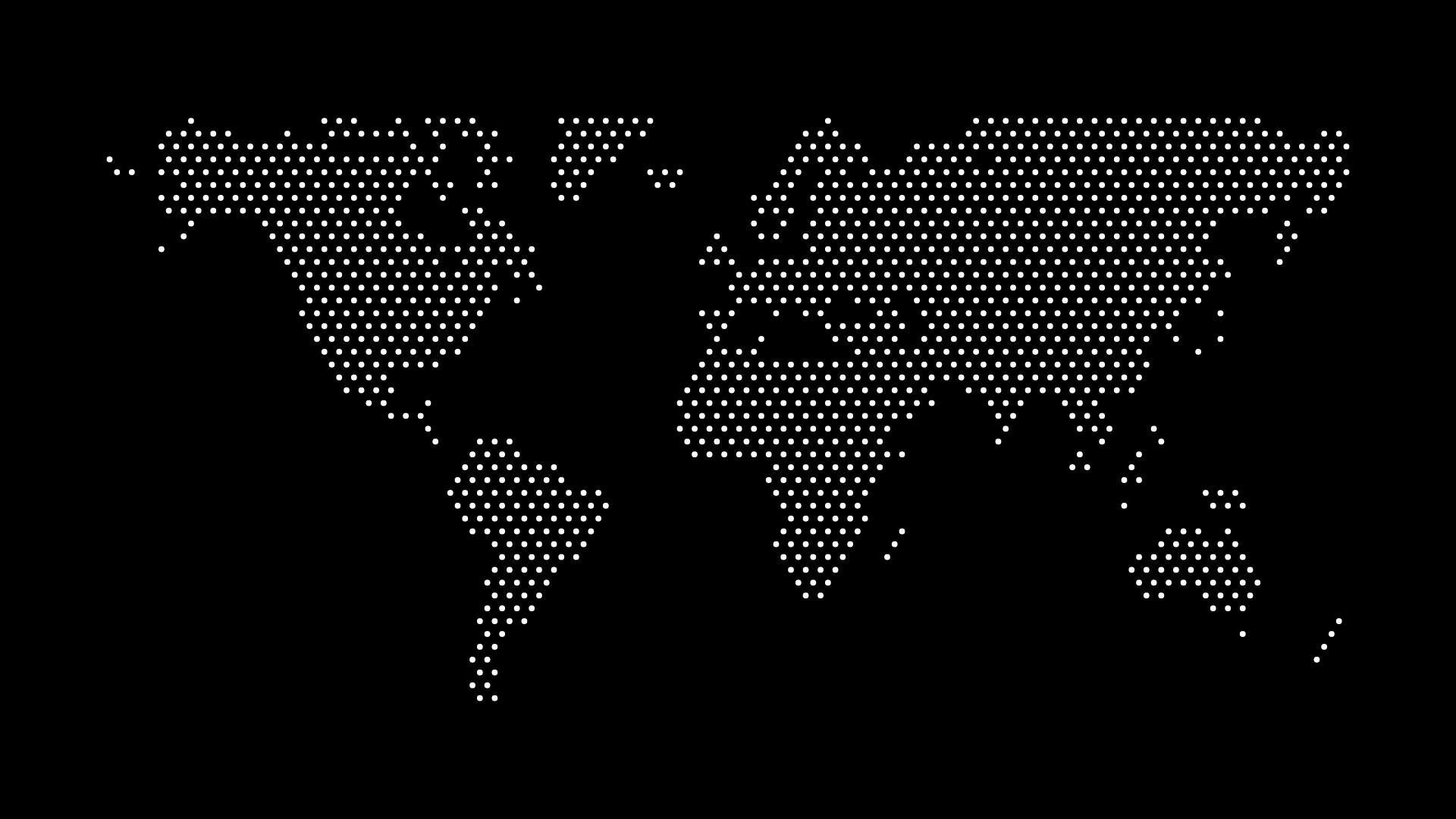
A dotted world map Zoom virtual background is a simple way to signal global reach or remote-team culture on a video call, without the clutter of a busy stock photo or the flatness of a plain color. The design constraints are different from most other map use cases, though — the map sits behind a moving, unpredictably-positioned face, so restraint matters more here than almost anywhere else you'd use a map.
This works for individual profile backgrounds as well as company-wide templates that get shared with a distributed or remote team for consistency across calls, webinars, and recorded demos.
Sizing It for Video Calls
Zoom, Google Meet, and Microsoft Teams all expect roughly the same aspect ratio for virtual backgrounds, matching standard webcam output:
- Recommended size: 1920×1080 pixels (16:9), which covers Zoom, Meet, and Teams without cropping issues
- Minimum: Zoom accepts smaller images, but anything under 1280×720 can look soft when displayed full-screen on a large monitor
- Format: export as PNG, since Zoom's virtual background uploader doesn't accept SVG — you need a raster file regardless of how you built the map
Generate the map at a wider canvas than you'd use for, say, a social post, since the full frame needs to hold up even when a chunky video call UI (names, reaction icons, gallery thumbnails) sits on top of it.
Designing Around the Face-Cutout Problem
Virtual background software segments the presenter from the background in real time, and that segmentation is imperfect — hair, glasses, and fast movement can create visible edge artifacts, especially against high-contrast backgrounds. A few choices reduce how noticeable this gets:
- Keep the center-lower area calm. Most people sit roughly centered with their head and shoulders in the lower two-thirds of frame. Avoid putting a dense cluster of bright dots directly behind where a head typically sits — a slightly sparser or darker area there reduces edge flicker.
- Favor a single background tone over a busy multi-color scheme. Segmentation software has an easier time with a background that has smooth, gradual tonal shifts rather than sharp local contrast changes near the subject.
- Push visual interest to the edges. A world map with more density toward the frame edges and a calmer middle keeps the person the visual focus, which is what a virtual background needs to do even when the map itself is the point of the design.
Color and Contrast
- Choose dot and background colors with enough separation from typical skin tones and common clothing colors to avoid the background bleeding into the subject at the edges
- Dark backgrounds with lighter dots tend to perform well on video calls — they read as "clean and professional" on camera and give webcam software a more even tonal field to key against than a stark white background
- If this is a company template, match it to your actual brand colors rather than defaulting to whatever looks best in isolation — the background is now representing your brand on every call
Company-Wide Templates vs. Individual Use
If you're rolling this out to a team:
- Generate one canonical version and distribute the exported PNG file rather than asking each person to build their own — this keeps the visual identity consistent across a company's calls
- Consider two variants: a lighter one for people whose home setups are dim (a dark background can make an already-dim webcam feed look murkier), and a darker one for well-lit setups
- Pair it with a short usage note — Zoom's background works best with a physical green screen or good, even lighting; without either, edge artifacts will be more visible regardless of how the map itself is designed
This is a smaller-scale version of the same problem remote-team website pages solve — using a map to visually represent a distributed team consistently across every place people encounter your brand.
A Note on Restraint
It's tempting to make a virtual background map as detailed and colorful as a poster, but the context works against that. People will be looking at your face, not the background, for the entire call — and any background that competes too hard for attention becomes a distraction rather than a signal. The map should read clearly as "world map" at a glance and then disappear into the background of attention, the same way a good SaaS landing page background supports a message without competing with it.
Quick Checklist
- Export at 1920×1080 PNG
- Keep the center-lower frame calmer to reduce webcam segmentation artifacts
- Favor a single accent color over a busy multi-color palette
- Build one shared template for teams rather than ad hoc individual versions
Generate the Map
Pick your region, dot color, and background in the map generator, export at 1920×1080, and upload it directly to your video-call app's virtual background settings. If you want a sharper export for a large external monitor or a recorded video, check the guidance on exporting for a retina display before you finalize the file.