Editable World Map SVG: Customize Colors, Dots, and Backgrounds
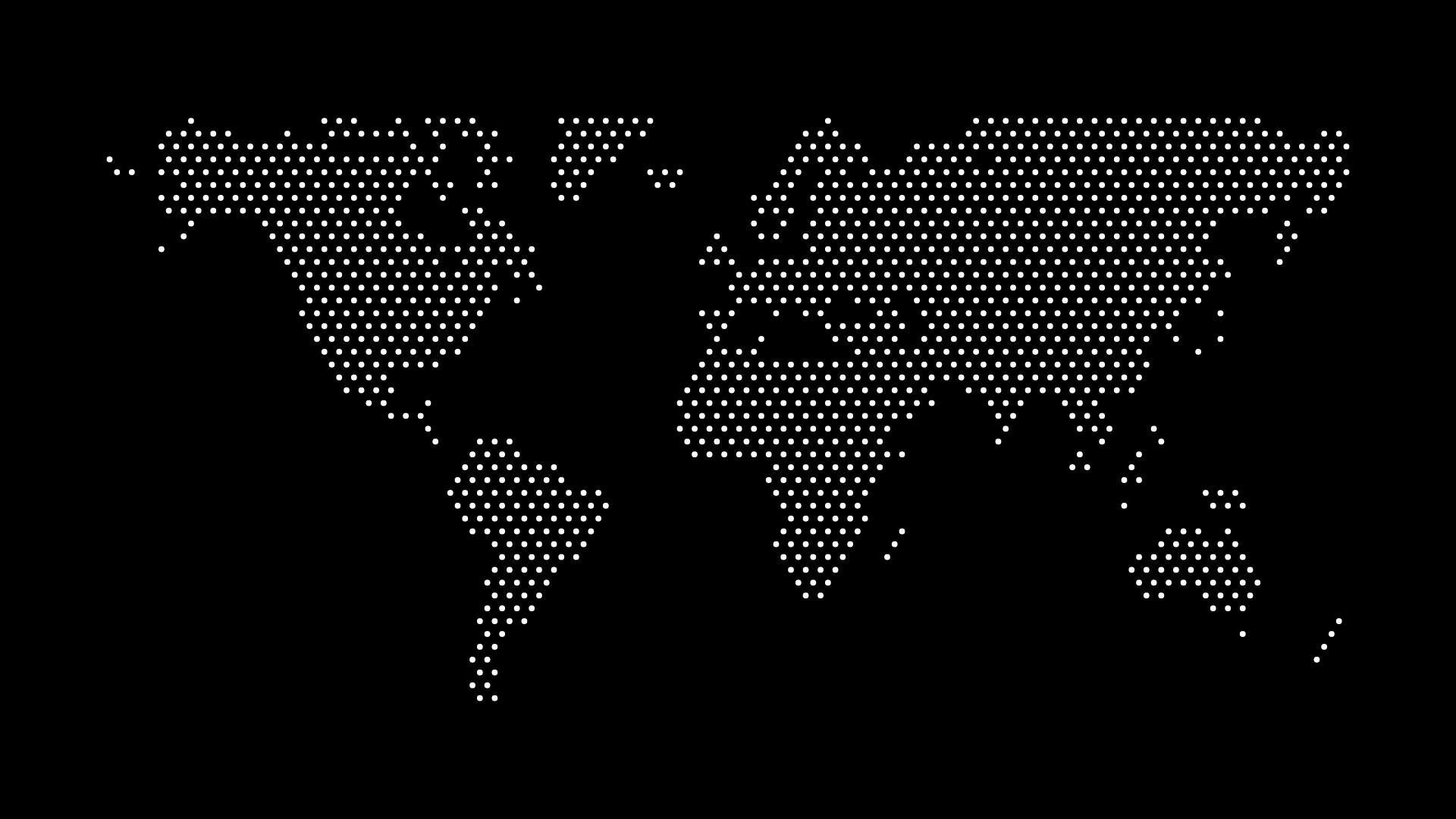
An editable world map SVG is useful when a map needs to belong to a design system instead of arriving as a fixed stock image. You can set the map’s colors, density, shape, spacing, and background before export, then keep the vector file for later design work.
For designers, that means one map can adapt to a website, pitch deck, social graphic, or print layout without becoming blurry or visually inconsistent.
What makes an SVG map editable?
SVG stands for Scalable Vector Graphics. Rather than storing a grid of pixels, it stores instructions for drawing shapes. That makes it appropriate for map graphics that must remain crisp at many sizes and can be opened in vector-aware design software.
An editable workflow begins before export. Set the visual decisions in the map generator first, then use the SVG as a flexible final asset rather than trying to repair a generic download later.
Customize the visual system first
Match the dot color to the brand
Choose a map color that belongs to the same palette as the surrounding design. A world map often works best in a supporting color rather than the most saturated brand color, especially when it sits behind content.
Set the density for the intended size
High dot density reveals more of the coastline and small shapes, but it also creates more visual noise. Use a denser map for a close-up poster or feature image. Use a simpler pattern for a background or a smaller card.
Choose a dot shape deliberately
Circular dots usually feel soft and modern. Square dots can feel more technical or digital. Keep the shape consistent with the other patterns, icons, and borders in the project.
Decide whether the background should be visible
A filled background is helpful when the map needs to function as a contained graphic. A transparent background is better when the map should blend into an existing layout.
A reliable editable world map SVG workflow
- Choose the world or region you want to show.
- Set the dot color and background from the project palette.
- Adjust dot size, density, and padding while viewing the map at approximately its final size.
- Export as SVG when you need scalable output or later vector editing.
- Open the SVG in your chosen design workflow and place it in the final composition.
The important step is to make style choices intentionally. An SVG remains editable, but the best result comes from exporting a map that is already close to finished.
SVG versus PNG for editable map work
Use SVG when the map may be resized, used on a responsive website, or refined in a vector design application. Use PNG when the map is going into a fixed-size social post or a tool that does not accept SVG files.
SVG also helps when one design needs several output sizes. Instead of creating separate low- and high-resolution files, you can export once and scale the vector appropriately.
Common mistakes to avoid
- Choosing a dot color before seeing the final background
- Making the pattern too dense for small placements
- Using insufficient padding around the map edges
- Exporting PNG first when future scaling is likely
- Treating the map as decoration without considering text contrast
Final thoughts
An editable world map SVG gives you control over both the initial design and the final format. Customize the map to match the project, export it as a vector, and keep the result ready for every size your work requires.