How to Add a Dotted World Map in Elementor
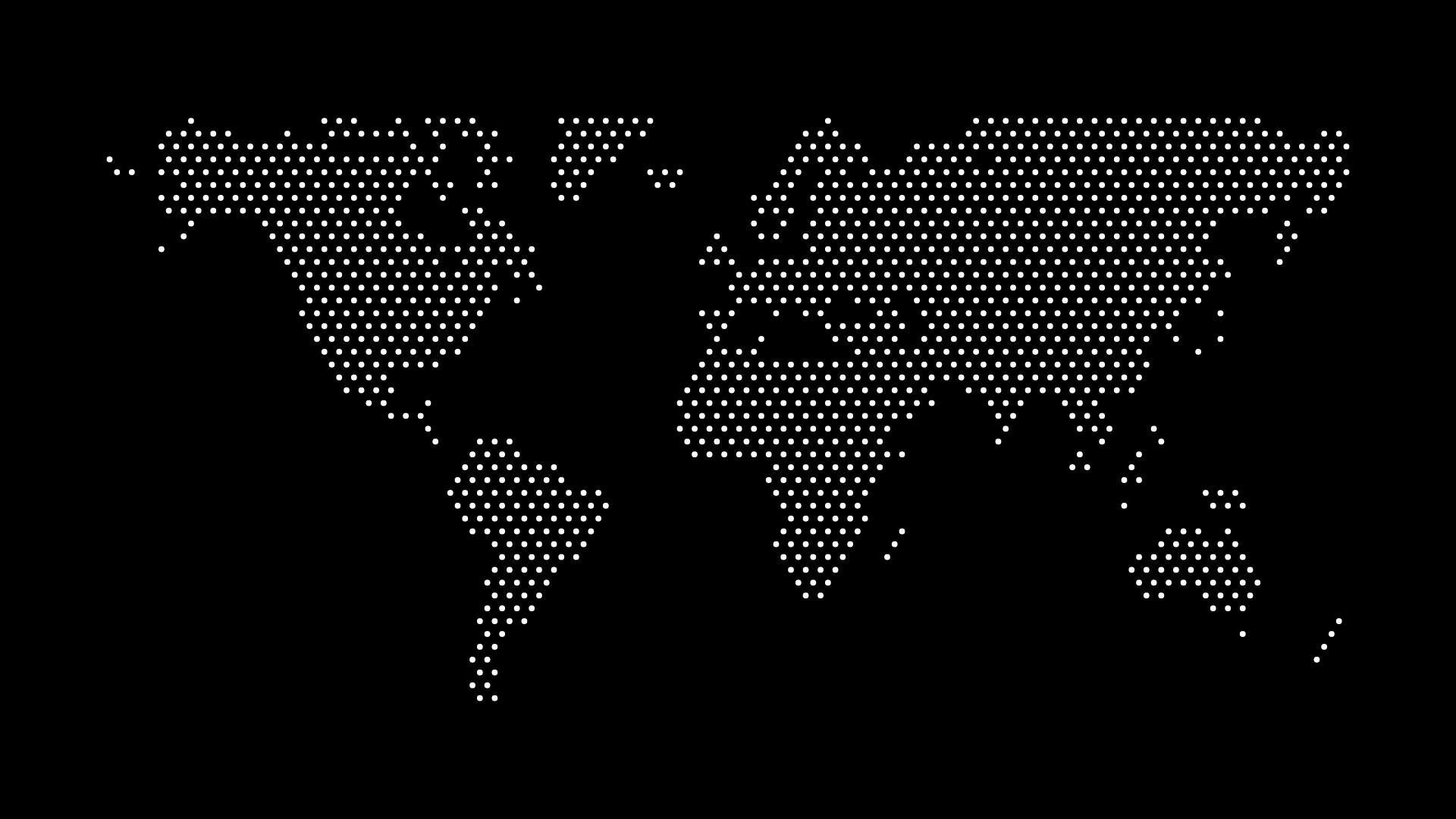
Adding a dotted world map in Elementor doesn't require a mapping plugin or a custom widget — the map is just an image, and Elementor already has a widget built for that. The only real decisions are which widget to use, how to size the map, and whether it should sit behind content or stand on its own.
Start with the file, not the plugin
Before touching Elementor, export the map itself. A dotted vector map generated as SVG scales to any size without softening, which matters on a hero section that stretches full-width across different screen sizes. Export at a transparent background if the map needs to sit over an existing section color or gradient, or with a solid background if it's meant to stand alone as a framed graphic.
Option 1: The Image widget
For most cases — a map placed inside a section, next to text, or as a standalone visual — Elementor's built-in Image widget is the simplest path:
- Drag the Image widget into a section or column.
- Upload the SVG or PNG through the media library. (If Elementor's media uploader rejects SVG files, that's a WordPress-level restriction, not an Elementor one — it can be re-enabled from the WordPress admin or resolved with a small snippet that allows the SVG MIME type.)
- Under Style, set the image width as a percentage rather than a fixed pixel value, so the map scales with its container on smaller screens.
- Use the Advanced tab's margin and z-index controls if the map needs to overlap adjacent sections.
This approach keeps the map as a normal, indexable image element and works identically whether the SVG came from World in Dots or any other source.
Option 2: A background image on a section or container
For a map that sits behind a headline, a call-to-action, or a full section of copy — the classic "global reach" hero pattern — background placement usually reads better than an inline image:
- Select the Section, Container, or Column that should carry the map.
- Open Style → Background, choose Image, and upload the exported SVG or PNG.
- Set Position to center and Size to
containif the map's proportions matter, orcoverif it should fill the space edge-to-edge. - Lower the opacity of the background layer, or add a semi-transparent overlay color in the same panel, so text placed on top stays readable — the same contrast principle covered in How to Add a World Map Background to an About Page.
Background images in Elementor are applied via CSS, so an SVG used this way won't appear in page markup as an <img> tag — worth knowing if the map needs to be crawlable or accessible as content rather than pure decoration, a distinction covered in more depth in Accessibility Best Practices for SVG Maps.
A note on Elementor-specific plugins
There are third-party Elementor addons that promise interactive or clickable maps. Those solve a different problem — a map visitors interact with, filter, or click through to region-specific content. If the goal is a static visual element (a hero background, an "our customers" section, a footer graphic), installing one of those is more machinery than the job needs. A plain image or background, as above, is lighter, faster to set up, and doesn't add another plugin to maintain.
Sizing and performance
Elementor pages already carry real weight from widgets, fonts, and animation libraries, so keep the map file itself lean:
- Prefer SVG over PNG when the map uses flat colors — it's typically smaller and stays sharp at every breakpoint, a comparison covered in SVG vs PNG Maps: Choosing the Right Format.
- If the exported SVG has a large path count, compress it before uploading — see How to Compress SVG Maps for Faster Loading.
- Preview the section on mobile inside Elementor's responsive editor; a dense dotted pattern that reads clearly on desktop can look noisy or disappear entirely at small sizes.
Final thoughts
A dotted world map in Elementor is just an asset placed with the tools already in the page builder — the Image widget for content-level placement, a section background for a decorative full-bleed treatment. The only preparation that matters happens before Elementor opens: exporting a map at the right density, color, and background setting for where it's going to sit.