How to Add Location Markers to Your Dotted Map
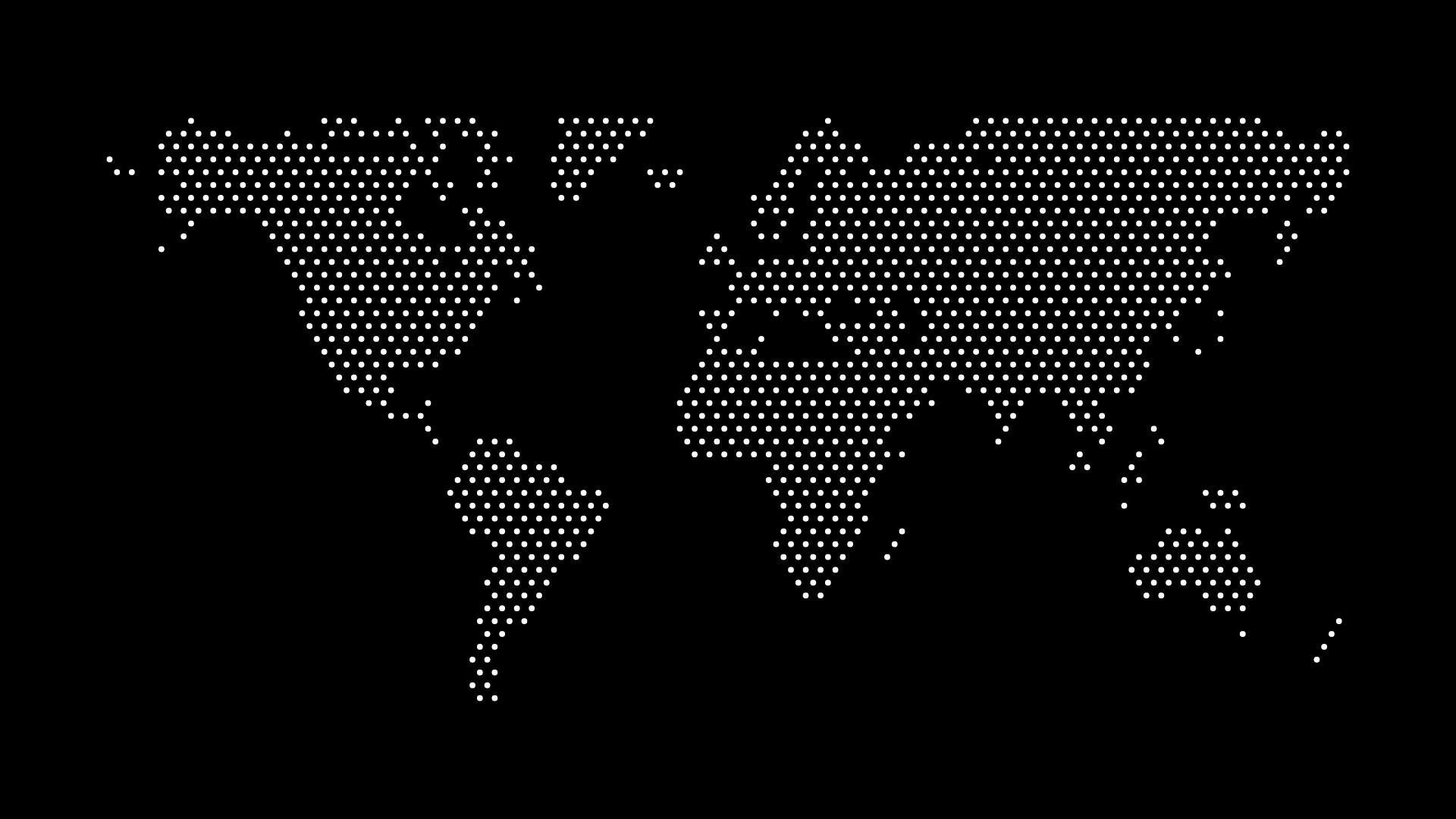
Location markers transform a simple dotted map into an informative visualization. Whether you're highlighting cities, marking destinations, or showing data points, adding markers helps viewers understand specific locations and their significance.
In this guide, we'll show you how to add location markers to dotted maps using various methods — from simple design tools to advanced web implementations.
Why Add Location Markers?
Location markers serve several purposes:
- Highlight Key Points — Draw attention to important locations
- Show Data — Mark cities, offices, or events
- Tell Stories — Visualize routes, journeys, or connections
- Improve Clarity — Make maps more informative and useful
- Add Interactivity — Enable clickable, hoverable markers
Method 1: Adding Markers in Design Tools
Canva
- Upload your map to Canva
- Click Elements in the left sidebar
- Search for "location pin" or "map marker"
- Drag markers onto your map
- Resize and position as needed
- Add text labels for city names
- Customize colors to match your design
Tip: Use consistent marker styles throughout your map for a professional look.
Adobe Illustrator
- Import your SVG map
- Create a custom marker:
- Draw a pin shape with Pen Tool
- Or use a pre-made icon
- Convert to Symbol for reuse
- Place markers at coordinates:
- Use guides for alignment
- Or manually position
- Add text labels with Type Tool
- Group markers and labels together
Figma
- Import your map
- Create a marker component:
- Design pin icon
- Set up as component with variants
- Instance markers on your map
- Use Auto Layout for labels
- Create interactive prototypes with markers
Method 2: Adding Markers with SVG Code
Basic Pin Marker
<svg viewBox="0 0 1000 600" xmlns="http://www.w3.org/2000/svg">
  <!-- Your map paths here -->

  <!-- Location marker -->
  <g class="marker" data-city="New York">
    <!-- Pin shape -->
    <path d="M500,200 L510,220 L490,220 Z" fill="#ef4444" />
    <circle cx="500" cy="200" r="8" fill="#ef4444" />

    <!-- Label -->
    <text x="500" y="235" text-anchor="middle" font-size="12" fill="#333">
      New York
    </text>
  </g>
</svg>
Custom Marker Styles
<!-- Star marker -->
<g class="marker-star">
  <path d="M500,200 L502,205 L507,205 L503,208 L505,213 L500,210 L495,213 L497,208 L493,205 L498,205 Z"
        fill="#fbbf24" />
</g>

<!-- Circle marker -->
<circle cx="500" cy="200" r="6" fill="#3b82f6" stroke="#fff" stroke-width="2" />

<!-- Square marker -->
<rect x="495" y="195" width="10" height="10" fill="#10b981" />
Method 3: Adding Markers with CSS and JavaScript
HTML Structure
<svg class="map" viewBox="0 0 1000 600">
  <!-- Map paths -->
</svg>

<div class="markers-container">
  <div class="marker" data-lat="40.7128" data-lng="-74.0060" data-city="New York">
    <div class="pin"></div>
    <div class="label">New York</div>
  </div>
  <!-- More markers -->
</div>
CSS Styling
.markers-container {
  position: relative;
  width: 100%;
  height: 100%;
}

.marker {
  position: absolute;
  transform: translate(-50%, -100%);
  cursor: pointer;
}

.pin {
  width: 20px;
  height: 20px;
  background: #ef4444;
  border-radius: 50% 50% 50% 0;
  transform: rotate(-45deg);
  border: 2px solid #fff;
  box-shadow: 0 2px 4px rgba(0,0,0,0.3);
}

.pin::after {
  content: '';
  width: 10px;
  height: 10px;
  background: #fff;
  border-radius: 50%;
  position: absolute;
  top: 50%;
  left: 50%;
  transform: translate(-50%, -50%) rotate(45deg);
}

.label {
  margin-top: 5px;
  padding: 4px 8px;
  background: #333;
  color: #fff;
  border-radius: 4px;
  font-size: 12px;
  white-space: nowrap;
  opacity: 0;
  transition: opacity 0.2s;
}

.marker:hover .label {
  opacity: 1;
}
JavaScript Positioning
// Convert lat/lng to SVG coordinates
function latLngToSVG(lat, lng, svgWidth, svgHeight) {
  // Simple Mercator projection (adjust for your map)
  const x = ((lng + 180) / 360) * svgWidth;
  const y = ((1 - Math.log(Math.tan(lat * Math.PI / 180) +
        1 / Math.cos(lat * Math.PI / 180)) / Math.PI) / 2) * svgHeight;
  return { x, y };
}

// Position markers
document.querySelectorAll('.marker').forEach(marker => {
  const lat = parseFloat(marker.dataset.lat);
  const lng = parseFloat(marker.dataset.lng);
  const { x, y } = latLngToSVG(lat, lng, 1000, 600);

  marker.style.left = `${x}%`;
  marker.style.top = `${y}%`;
});
Method 4: Interactive Markers with Tooltips
HTML
<svg class="map" viewBox="0 0 1000 600">
  <!-- Map -->
  <circle class="marker" cx="500" cy="200" r="6" data-city="New York" data-info="Population: 8.3M" />
</svg>

<div id="tooltip" class="tooltip"></div>
CSS
.marker {
  fill: #ef4444;
  stroke: #fff;
  stroke-width: 2;
  cursor: pointer;
  transition: all 0.2s;
}

.marker:hover {
  fill: #dc2626;
  r: 8;
}

.tooltip {
  position: absolute;
  background: #333;
  color: #fff;
  padding: 8px 12px;
  border-radius: 4px;
  font-size: 12px;
  pointer-events: none;
  opacity: 0;
  transition: opacity 0.2s;
}
JavaScript
const markers = document.querySelectorAll('.marker');
const tooltip = document.getElementById('tooltip');

markers.forEach(marker => {
  marker.addEventListener('mouseenter', (e) => {
    const city = e.target.dataset.city;
    const info = e.target.dataset.info;

    tooltip.innerHTML = `<strong>${city}</strong><br>${info}`;
    tooltip.style.opacity = '1';
  });

  marker.addEventListener('mousemove', (e) => {
    tooltip.style.left = e.pageX + 10 + 'px';
    tooltip.style.top = e.pageY + 10 + 'px';
  });

  marker.addEventListener('mouseleave', () => {
    tooltip.style.opacity = '0';
  });
});
Advanced Techniques
Animated Markers
@keyframes markerPulse {
  0%, 100% {
    r: 6;
    opacity: 1;
  }
  50% {
    r: 10;
    opacity: 0.7;
  }
}

.marker.animated {
  animation: markerPulse 2s ease-in-out infinite;
}
Clustered Markers
For maps with many markers, use clustering:
// Group nearby markers
function clusterMarkers(markers, threshold) {
  const clusters = [];
  markers.forEach(marker => {
    let added = false;
    clusters.forEach(cluster => {
      if (distance(marker, cluster.center) < threshold) {
        cluster.markers.push(marker);
        added = true;
      }
    });
    if (!added) {
      clusters.push({ center: marker, markers: [marker] });
    }
  });
  return clusters;
}
Custom Marker Icons
<defs>
  <symbol id="custom-pin" viewBox="0 0 24 24">
    <path d="M12 2C8.13 2 5 5.13 5 9c0 5.25 7 13 7 13s7-7.75 7-13c0-3.87-3.13-7-7-7z"/>
  </symbol>
</defs>

<use href="#custom-pin" x="500" y="200" width="24" height="24" fill="#ef4444" />
Best Practices
Design
- Consistent style across all markers
- Appropriate size — visible but not overwhelming
- Color coding for different marker types
- Clear labels that don't clutter the map
Performance
- Limit marker count for web performance
- Use CSS for simple animations
- Lazy load markers if many locations
- Optimize marker graphics
Accessibility
- Alt text for marker images
- Keyboard navigation support
- Screen reader labels
- High contrast colors
Common Use Cases
Travel Maps
- Mark visited cities
- Show travel routes
- Highlight destinations
- Display trip itinerary
Business Maps
- Office locations
- Service areas
- Customer locations
- Event venues
Data Visualization
- Data points by location
- Regional statistics
- Comparison markers
- Trend indicators
Final Thoughts
Adding location markers to your dotted map transforms it from a simple graphic into a powerful visualization tool. Whether you're using design tools for quick graphics or coding custom interactive markers, the techniques in this guide give you the flexibility to create exactly what you need.
Start with a clean dotted map from World in Dots, then add your markers to highlight the locations that matter to your project. The combination of minimalist map design and strategic marker placement creates compelling visualizations.
Ready to add markers to your map? Generate your dotted map and start marking locations today.