How to Create a Dotted Map in PowerPoint
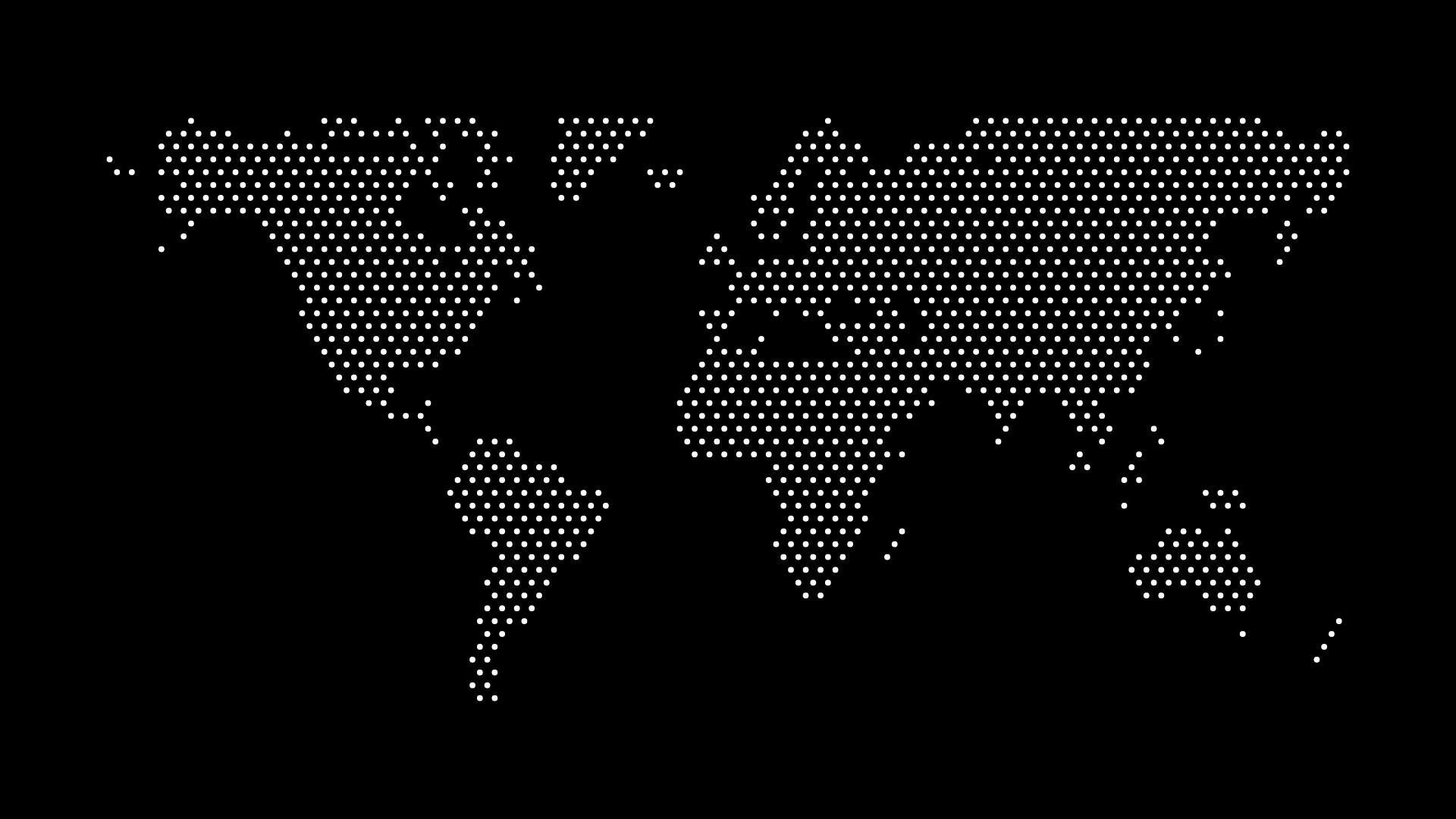
Creating dotted maps in PowerPoint adds professional geographic visualizations to your presentations. Whether you're showing market coverage, office locations, or regional data, dotted maps enhance your slides with clean, modern design.
In this guide, we'll walk through how to create and customize dotted maps in PowerPoint.
Why Use Dotted Maps in PowerPoint
Dotted maps work well in PowerPoint because:
- Professional appearance — Clean, modern aesthetic
- Easy to customize — Simple styling and color changes
- Scalable — Maintain quality at any size
- Versatile — Works for many presentation types
- Lightweight — Small file sizes
Method 1: Import SVG Map
Step 1: Generate Your Map
- Visit World in Dots
- Select your region
- Customize dot style and colors
- Download as SVG
Step 2: Import to PowerPoint
- Open PowerPoint
- Go to Insert > Pictures > This Device
- Select your SVG file
- The map will appear on your slide
Note: PowerPoint supports SVG files and maintains vector quality when resized.
Step 3: Customize in PowerPoint
Resize:
- Drag corners to resize (hold Shift for proportional scaling)
- Use Format > Size for precise dimensions
Recolor:
- Select the map
- Go to Picture Format > Color
- Choose Recolor options
- Apply brand colors
Position:
- Drag to reposition
- Use alignment guides
- Snap to grid if needed
Method 2: Use PNG Map
For Simple Use Cases
- Download map as PNG (high resolution)
- Insert as picture
- Resize and position
- Apply picture effects if needed
Best for: Quick insertion, no editing needed
Customization Tips
Color Matching
Match brand colors:
- Use Picture Format > Color > Recolor
- Apply custom colors
- Maintain brand consistency
- Test on projector
Size Optimization
Appropriate sizing:
- Fill slide for backgrounds
- Smaller for data overlays
- Test readability
- Consider projection size
Layering
Layer management:
- Send to back for backgrounds
- Bring forward for emphasis
- Use transparency if needed
- Group with other elements
Common Use Cases
Market Coverage Slides
Application:
- Show service areas
- Display market presence
- Visualize coverage zones
- Highlight regions
Design tips:
- Use brand colors
- Add clear labels
- Maintain consistency
- Professional appearance
Office Location Slides
Application:
- Show office locations
- Display global presence
- Highlight key markets
- Visualize expansion
Design tips:
- Add location markers
- Clear labels
- Consistent styling
- Engaging visuals
Data Visualization Slides
Application:
- Overlay statistics
- Show regional data
- Compare markets
- Visualize trends
Design tips:
- Keep maps subtle
- Ensure data readability
- Use appropriate colors
- Clear legends
Best Practices
Consistency
Maintain consistency:
- Same map style throughout
- Consistent colors
- Uniform sizing
- Professional quality
Clarity
Ensure clarity:
- Readable labels
- Appropriate detail
- High contrast
- Test on projector
Performance
Optimize performance:
- Use SVG for scalability
- Optimize file sizes
- Avoid excessive effects
- Test presentation flow
Troubleshooting
Map appears pixelated:
- Use SVG format instead of PNG
- Ensure high resolution if using PNG
- Check zoom level
Colors not changing:
- SVG may need ungrouping
- Try Picture Format > Color options
- Consider editing source file
File size too large:
- Optimize SVG before importing
- Reduce map complexity
- Use compressed formats
Tools and Resources
- World in Dots — Generate dotted maps
- PowerPoint — Presentation software
- Design software — Advanced customization
- Color tools — Brand color matching
Final Thoughts
Creating dotted maps in PowerPoint enhances presentations with professional geographic visualizations. Whether you use SVG or PNG, dotted maps add clarity and visual interest to your slides.
The key is choosing the right format for your needs and maintaining consistency throughout your presentation. With tools like World in Dots, creating custom maps for PowerPoint is easier than ever.
Ready to enhance your PowerPoint presentations? Generate your dotted map and start creating today.