How to Create a World Map SVG for a LinkedIn Banner
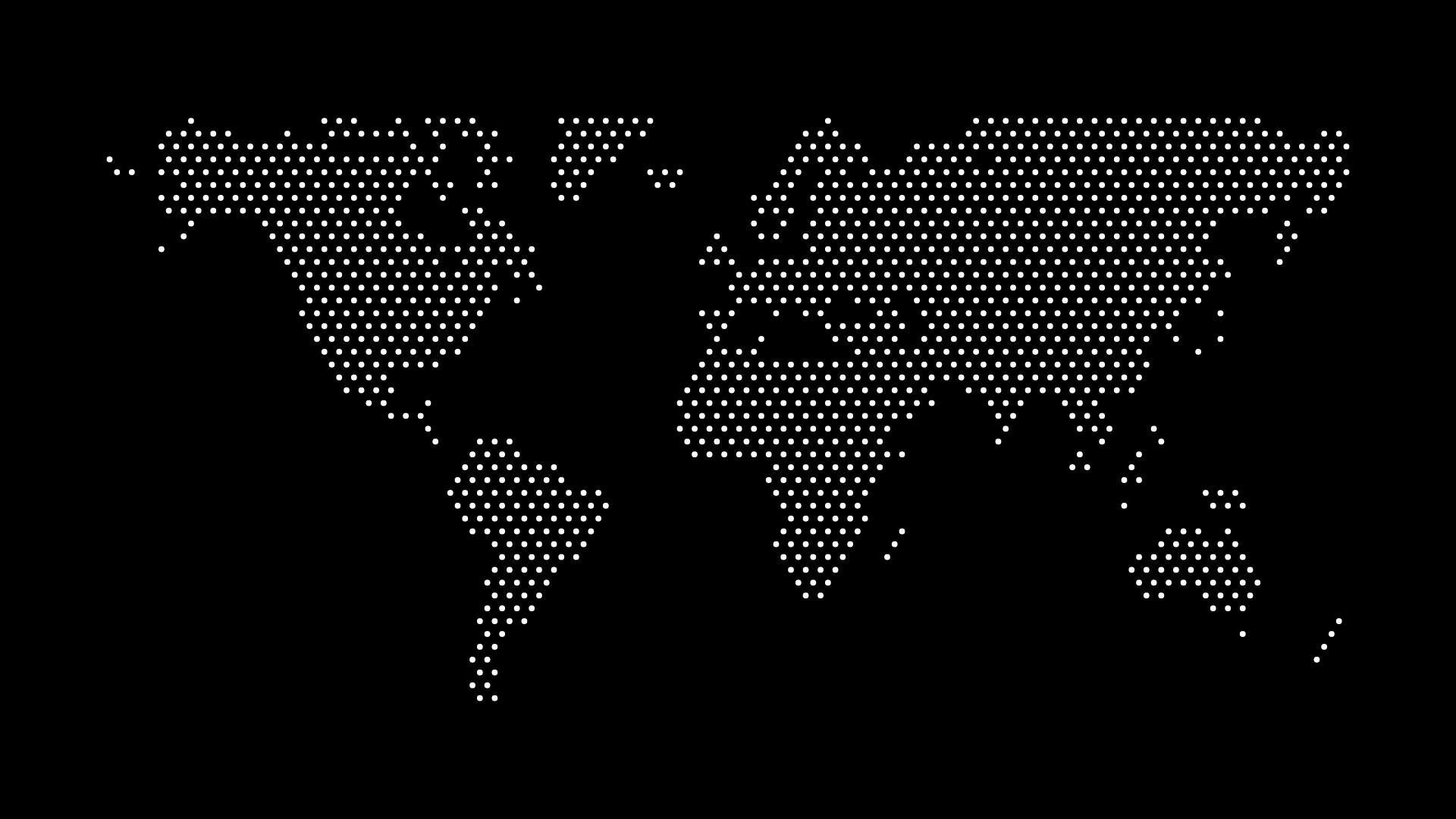
A world map SVG for a LinkedIn banner can signal international experience, a distributed team, or a global product. The banner has limited space, so the map should act as a background layer while your brand name, positioning, or portrait remains clear.
Start with the message and safe areas
Decide what the banner needs to communicate in one glance. Keep the most important text and visual elements in areas that will remain visible across LinkedIn’s desktop and mobile layouts. Place the map in the remaining space rather than letting it compete with the profile content.
Make the map simple enough for a wide, shallow format
LinkedIn banners are broad and not very tall. Use a world map with enough padding that it can be cropped intentionally at the edges. Medium density and one restrained color generally work better than a highly detailed pattern that becomes unreadable at banner size.
Match the map to the profile brand
Use a map color that supports the banner palette. For a personal profile, a subtle neutral or one accent color can keep the result professional. For a company page, match the map to the established identity and avoid creating a banner that feels disconnected from the website.
Export and test
Keep the SVG as the scalable source file, then export a high-resolution PNG at the required banner dimensions for upload. Check the preview on both desktop and mobile, and adjust the crop if any key map detail or text moves into an unsafe area.
Final thoughts
The strongest LinkedIn map banners are simple, branded, and easy to scan. Use the map to add context around your message, not to fill every available pixel.