How to Use Dotted Maps in Canva Projects
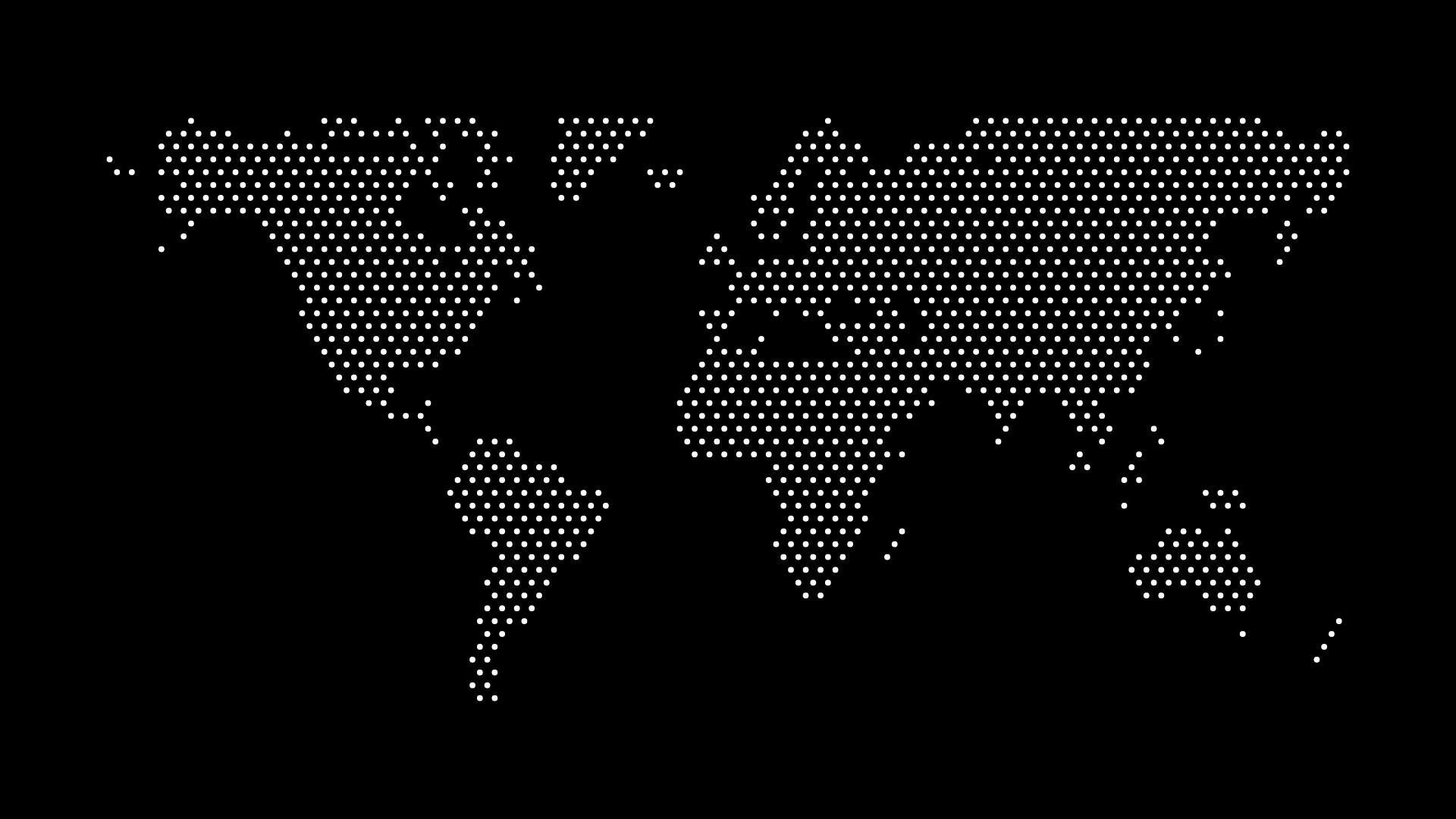
Canva has become the go-to design tool for millions of creators, and dotted maps are a perfect addition to any project. Whether you're designing social media graphics, presentations, or marketing materials, dotted maps add a professional, modern touch.
In this guide, we'll show you exactly how to use dotted maps in Canva — from importing to customizing — so you can create stunning designs in minutes.
Why Dotted Maps Work Great in Canva
Dotted maps complement Canva's design workflow:
- Modern Aesthetic — Clean, minimalist style that fits current design trends
- Versatile — Works for backgrounds, focal points, or decorative elements
- Professional — Adds sophistication without overwhelming your design
- Easy to Customize — Adjust colors and sizes to match your brand
- Lightweight — Small file sizes keep your designs fast-loading
Step 1: Generate Your Dotted Map
Before adding to Canva, create your map:
- Visit World in Dots
- Select your region (world, continent, or country)
- Choose a dotted style that matches your project
- Customize dot size and spacing
- Download as PNG (high resolution) or SVG
Tip: For Canva, PNG format often works best as it's easier to manipulate and resize.
Step 2: Upload to Canva
Method 1: Direct Upload
- Open your Canva project
- Click Uploads in the left sidebar
- Click Upload files or drag your map file
- Wait for upload to complete
Method 2: Drag and Drop
- Open your Canva project
- Drag the map file directly onto the canvas
- Canva will automatically add it as an element
Step 3: Position and Resize
Once your map is in Canva:
- Click the map to select it
- Drag to position where you want it
- Resize by dragging corners (hold Shift to maintain aspect ratio)
- Use alignment tools to center or align with other elements
Tip: For backgrounds, resize the map to fill the entire canvas, then adjust opacity if needed.
Step 4: Customize Colors
Using Canva's Color Tools
- Select your map
- Click Effects in the top toolbar
- Use Duotone or Color overlay to change colors
- Adjust Brightness and Contrast as needed
Advanced Color Customization
For SVG files (if Canva supports them):
- Upload SVG file
- Select the map
- Use Color picker to change individual elements
- Apply Filters for creative effects
Note: PNG files are rasterized, so color changes apply to the entire image. For per-element color control, use SVG if supported.
Step 5: Add Design Elements
Text Overlays
- Add Text elements on top of your map
- Use Contrast to ensure readability
- Apply Text effects like shadows or outlines
- Position text in areas with less map detail
Icons and Graphics
- Add Icons from Canva's library
- Place Location markers on specific countries
- Use Lines or Arrows to highlight regions
- Add Shapes for callouts or annotations
Backgrounds and Frames
- Add Background colors behind your map
- Use Frames to create interesting compositions
- Apply Borders or Shadows for depth
- Experiment with Blend modes for creative effects
Design Ideas for Canva Projects
Social Media Posts
- Instagram Stories: Use world map as background with travel destinations
- LinkedIn Posts: Show global reach or market presence
- Facebook Covers: Create branded header images
Presentations
- Slide Backgrounds: Subtle map pattern behind content
- Data Visualization: Overlay charts or statistics on maps
- Title Slides: World map as hero image
Marketing Materials
- Flyers: Highlight service areas or locations
- Posters: Create travel or geography-themed designs
- Infographics: Combine maps with data and icons
Brand Assets
- Logos: Incorporate minimalist map elements
- Business Cards: Subtle map background
- Email Headers: Professional geographic branding
Tips for Best Results
Resolution
- Use high-resolution PNG (at least 2000px wide) for print
- Lower resolution (1000px) works fine for web/social media
- Canva will warn you if resolution is too low for print
Composition
- Don't overcrowd — Let the map breathe with white space
- Use contrast — Ensure text and elements are readable
- Balance elements — Distribute visual weight evenly
Brand Consistency
- Match map colors to your brand palette
- Use consistent dot sizes across designs
- Maintain style consistency in related projects
Common Workflows
Creating a Social Media Post
- Choose Instagram Post template (1080x1080px)
- Upload world map as background
- Reduce opacity to 30-40%
- Add text overlay with your message
- Add icons or graphics for visual interest
Designing a Presentation Slide
- Use Presentation template
- Upload regional map (e.g., Europe)
- Position map on one side
- Add content on the other side
- Use connecting lines or arrows
Building an Infographic
- Start with Infographic template
- Upload multiple regional maps
- Arrange maps with data visualizations
- Add icons, charts, and text
- Use consistent color scheme throughout
Troubleshooting
Map appears pixelated:
- Upload a higher resolution version
- Avoid enlarging small images too much
Can't change individual colors:
- PNG files are rasterized — use effects/filters instead
- Try uploading SVG if Canva supports it
Map doesn't fit design:
- Use Crop tool to focus on specific regions
- Adjust Aspect ratio in resize options
- Try different map orientations
Final Thoughts
Using dotted maps in Canva opens up endless creative possibilities. Whether you're a social media manager, marketer, or designer, dotted maps add a professional touch to any project.
With tools like World in Dots generating your maps and Canva's intuitive design tools, you can create stunning visuals in minutes — no design degree required.
Ready to enhance your Canva designs? Generate your dotted map and start creating today.