Using an SVG World Map in React Native Apps
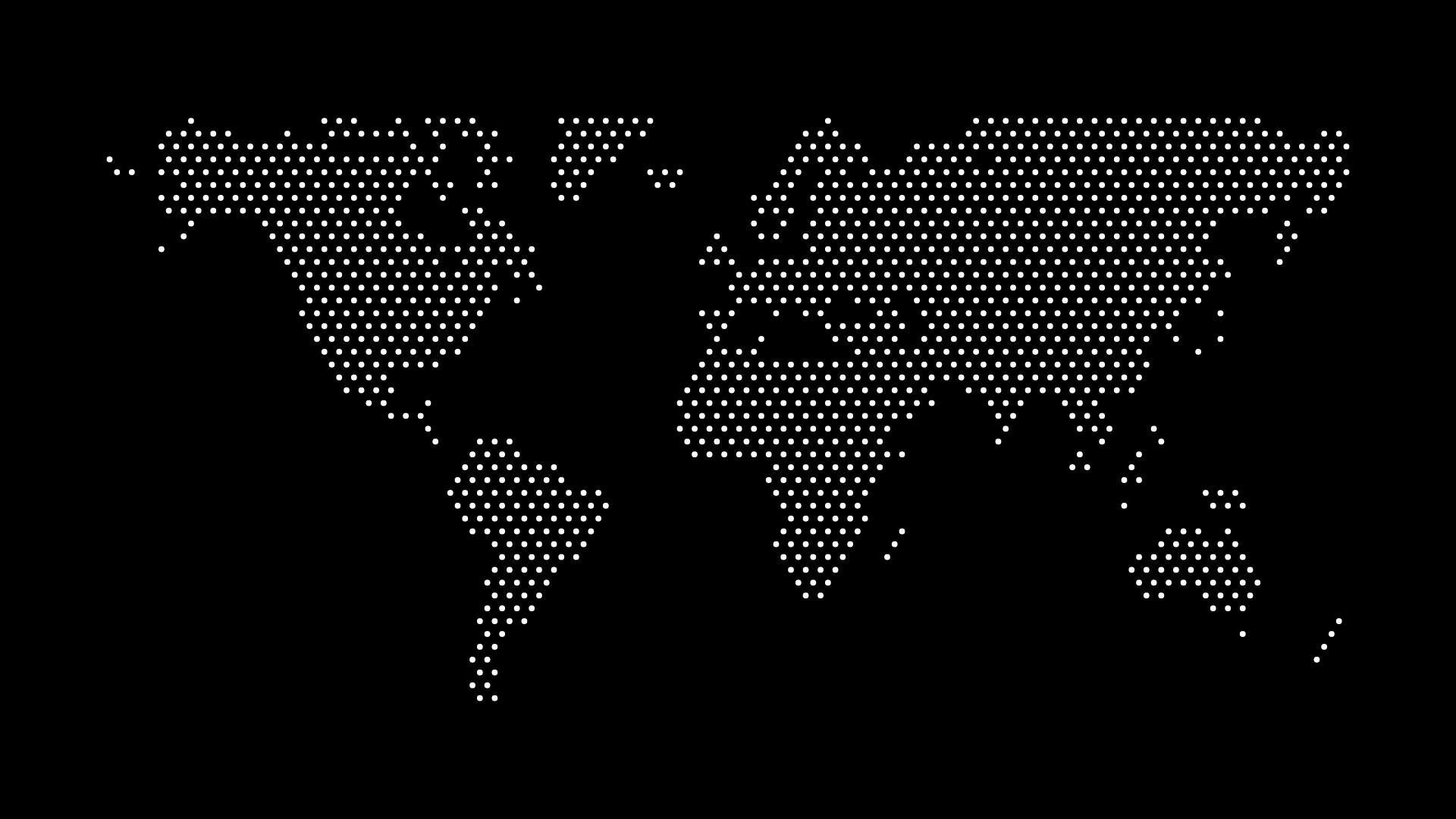
React Native doesn't render SVG on its own — unlike the web, there's no built-in <svg> element in the native rendering tree. Getting an SVG world map into a React Native app means going through react-native-svg, the library that's become the de facto standard for vector graphics on both iOS and Android, and understanding a couple of quirks specific to mobile before you drop in a map with a few thousand dots.
Setting Up react-native-svg
Install the library and, for bare React Native projects, run a native rebuild (Expo projects with the standard config plugin don't need this extra step):
npm install react-native-svg
npx pod-install # bare iOS projects only
From there, you have two practical ways to bring in a map file.
SvgXml or SvgUri — load raw SVG markup or a remote URL at runtime:
import { SvgXml } from "react-native-svg";

<SvgXml xml={mapSvgString} width="100%" height={300} />
This is the simplest option if the map is generated dynamically or fetched from your backend, but parsing SVG XML at runtime has a real performance cost on lower-end Android devices, especially for a map with a large number of paths or circles.
react-native-svg-transformer — a Metro bundler transform that lets you import an .svg file directly as a component, the same way you'd import an image:
import WorldMap from "./assets/world-map.svg";

<WorldMap width="100%" height={300} />
This is the better default for a map that ships as part of your app bundle rather than being fetched at runtime — it's compiled once at build time instead of parsed on every render, and it plays nicely with the rest of your component tree since it behaves like any other React component.
Why Dot Density Matters More on Mobile
A dotted world map with thousands of individual <circle> elements renders without complaint in a browser, where the SVG engine is heavily optimized and hardware-accelerated by default. On React Native, especially on the older (non-Fabric) architecture still running in some production apps, every shape in an SVG is a separate native view under the hood, and a very dense map can measurably slow down both initial render and any animation layered on top of it.
The practical fix is to simplify before you export, not after: choose a lower dot density or larger dot size in World in Dots when the target is a phone screen, where fine detail is invisible anyway. A map tuned for a 400px-wide phone screen doesn't need the same point count as one destined for a 4K desktop hero image — this mirrors the general guidance in making SVG maps responsive for mobile devices, just applied to a native app instead of a browser viewport.
If you specifically need a highly detailed map and interactivity isn't required, exporting as PNG and rendering it with React Native's built-in Image component is often the more reliable choice — you trade vector scalability for guaranteed smooth rendering, which is usually the right trade-off for a background or splash-screen map that nobody needs to tap on.
Adding Interactivity
Individual dots or country shapes inside an Svg component accept the same touch handlers as any other React Native element:
<Circle
  cx={120}
  cy={80}
  r={2}
  fill={selectedCountry === "brazil" ? "#2563eb" : "#94a3b8"}
  onPress={() => setSelectedCountry("brazil")}
/>
Keep the touch target realistic — a 2px dot is nearly impossible to tap accurately on a phone screen. If you need tappable countries or regions rather than decorative dots, wrap each shape in a larger invisible hit area, or switch to a country-outline map instead of individual dots for anything the user is expected to interact with directly. The same sizing trade-off is covered from a web perspective in choosing the right dot size for your map project, and it applies just as directly on a phone screen.
Testing on Real Devices, Not Just the Simulator
SVG rendering performance in the iOS Simulator and Android Emulator doesn't reliably reflect real device behavior, particularly on Android where GPU performance varies enormously across the price range. If your map is going into a consumer app rather than an internal tool, test on a genuinely low-end Android device before deciding your dot density is fine — a map that renders instantly on a simulator running on your development machine can visibly stutter on a three-year-old budget phone.
Final Thoughts
react-native-svg makes a world map fully usable inside a native app, but "it renders in the browser" and "it renders smoothly on a mid-range phone" are different bars to clear. Bundle the SVG as a component rather than parsing it at runtime when you can, simplify dot density for the smaller canvas you're actually targeting, and fall back to a PNG for any map that's purely decorative — the visual result is close enough that most users will never notice the difference, and your frame rate will thank you.