Using Dotted Maps in Affinity Designer
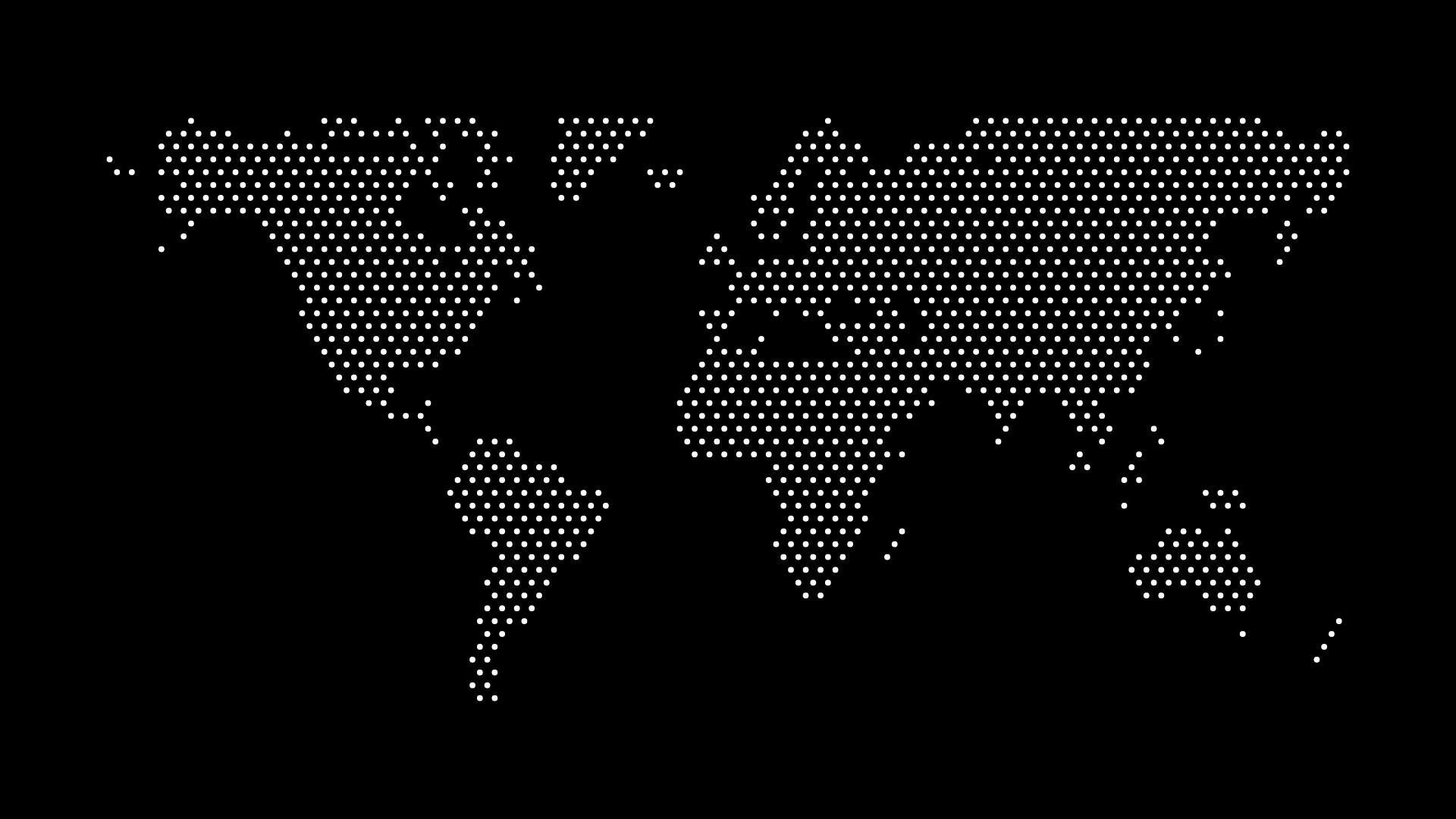
Affinity Designer is a powerful, affordable alternative to Illustrator — and it handles vector maps beautifully. If you want to add a clean dotted map to a poster, infographic, or brand asset, importing an SVG from World in Dots takes just a few clicks.
This guide shows how to use dotted maps in Affinity Designer, from import to editing.
Why Affinity Designer Works Well for Maps
- True vector editing — every dot is an editable object
- Crisp at any scale — SVG maps stay sharp from icon to billboard
- No subscription — a one-time purchase, unlike Illustrator
- Cross-platform — macOS, Windows, and iPad
How to Import a Dotted Map
Step 1: Export an SVG
In World in Dots, choose your region, set the dot style and colors, and export as an SVG.
Step 2: Open in Affinity Designer
Use File → Open or simply drag the SVG onto the canvas. Affinity imports it as editable vector curves.
Step 3: Edit the Map
- Recolor dots to match your brand palette
- Group, ungroup, or isolate regions
- Add markers, labels, or connecting lines using Affinity's vector tools

Workflow Tips
- Keep the imported map on its own layer so you can style around it
- Use global colors to recolor all dots at once
- Export the finished artwork back to SVG, PDF, or PNG for any use
Final Thoughts
Affinity Designer and World in Dots make a great pairing: generate a clean dotted map in seconds, then refine it with full vector control. No Illustrator subscription required.
Create your map today and bring it into Affinity Designer for the perfect finish.