Using SVG Maps in React and Vue Projects
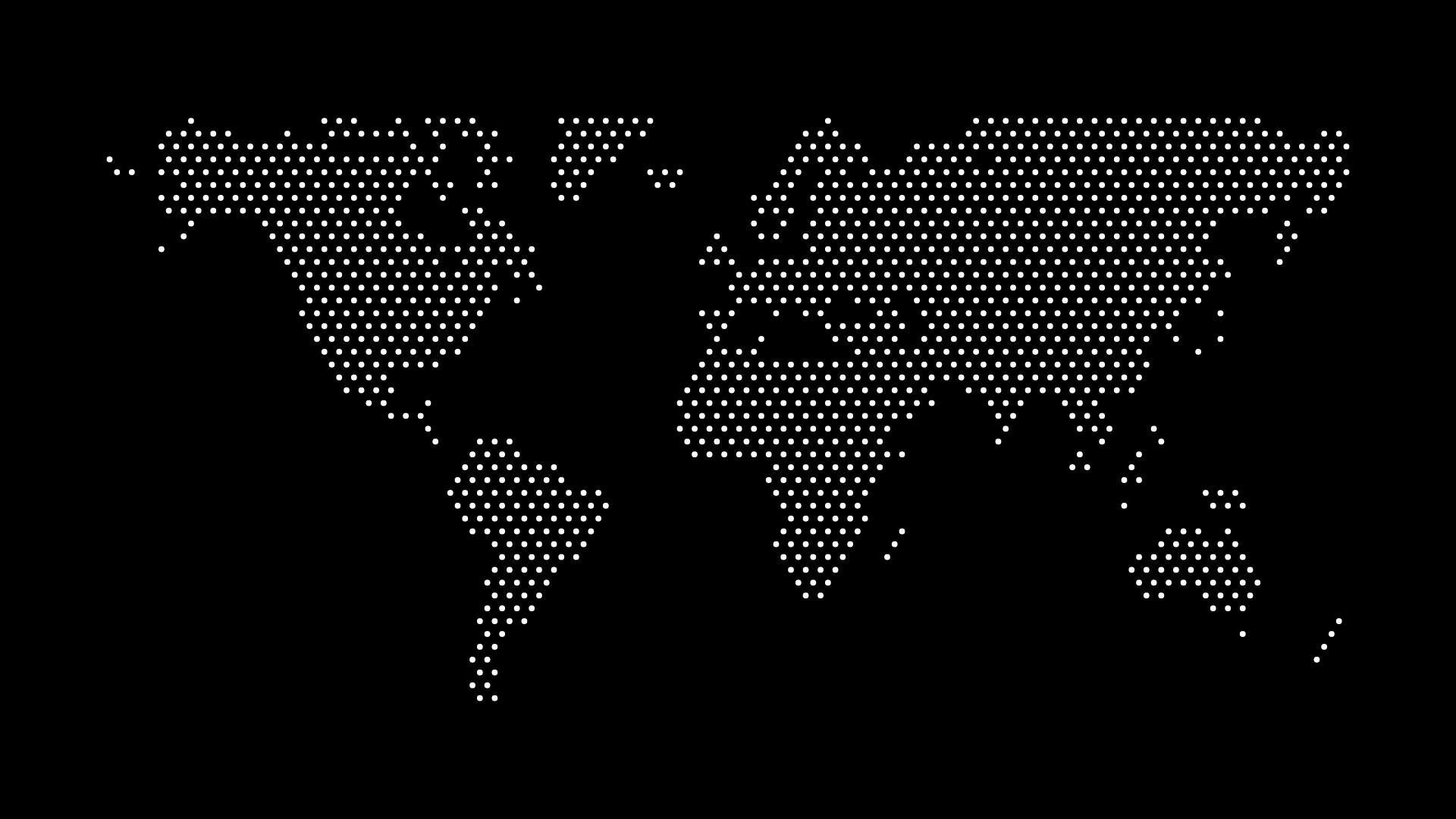
SVG maps are perfect for modern web applications built with React or Vue. Their vector nature, small file sizes, and CSS/JavaScript compatibility make them ideal for interactive dashboards, data visualizations, and geographic interfaces.
In this guide, we'll cover everything you need to know about using SVG maps in React and Vue projects, from basic integration to advanced interactive features.
Why SVG Maps for React/Vue?
SVG maps work exceptionally well with modern frameworks:
- Component-Based — Maps fit naturally into component architecture
- Reactive — Easy to update based on state/props
- Performant — Lightweight and scalable
- Customizable — Full control with CSS and JavaScript
- Interactive — Built-in support for events and animations
React: Basic Integration
Importing SVG
Method 1: Inline SVG
import React from 'react';

function WorldMap() {
  return (
    <svg viewBox="0 0 1000 600" xmlns="http://www.w3.org/2000/svg">
      <path className="country" d="M100,100 L200,100 L200,200 Z" fill="#333" />
      {/* More paths */}
    </svg>
  );
}

export default WorldMap;
Method 2: SVG as Component
import { ReactComponent as WorldMap } from './world-map.svg';

function App() {
  return (
    <div className="map-container">
      <WorldMap />
    </div>
  );
}
Method 3: Using react-svg
npm install react-svg
import { ReactSVG } from 'react-svg';

function App() {
  return (
    <ReactSVG src="/world-map.svg" />
  );
}
Making Maps Interactive
import React, { useState } from 'react';

function InteractiveMap() {
  const [selectedCountry, setSelectedCountry] = useState(null);

  const handleCountryClick = (countryName) => {
    setSelectedCountry(countryName);
  };

  return (
    <div>
      <svg viewBox="0 0 1000 600">
        <path
          className={`country ${selectedCountry === 'USA' ? 'selected' : ''}`}
          d="..."
          onClick={() => handleCountryClick('USA')}
          onMouseEnter={(e) => e.target.style.fill = '#3b82f6'}
          onMouseLeave={(e) => e.target.style.fill = '#333'}
        />
        {/* More countries */}
      </svg>
      {selectedCountry && <p>Selected: {selectedCountry}</p>}
    </div>
  );
}
Styling with CSS Modules
// Map.module.css
.mapContainer {
  width: 100%;
  height: auto;
}

.country {
  fill: #e5e7eb;
  stroke: #fff;
  stroke-width: 1;
  cursor: pointer;
  transition: fill 0.3s;
}

.country:hover {
  fill: #3b82f6;
}

.country.selected {
  fill: #1e40af;
  stroke-width: 2;
}
import styles from './Map.module.css';

function Map() {
  return (
    <div className={styles.mapContainer}>
      <svg viewBox="0 0 1000 600">
        <path className={styles.country} d="..." />
      </svg>
    </div>
  );
}
React: Advanced Patterns
Map Component with Props
import React from 'react';

function Map({
  countries,
  selectedCountry,
  onCountrySelect,
  colorScheme = 'default'
}) {
  const getCountryColor = (country) => {
    if (selectedCountry === country.name) return '#1e40af';
    return colorScheme === 'dark' ? '#333' : '#e5e7eb';
  };

  return (
    <svg viewBox="0 0 1000 600">
      {countries.map((country) => (
        <path
          key={country.id}
          d={country.path}
          fill={getCountryColor(country)}
          onClick={() => onCountrySelect(country.name)}
          className="country"
        />
      ))}
    </svg>
  );
}

export default Map;
Using React Hooks for Map Data
import { useState, useEffect } from 'react';

function MapWithData() {
  const [mapData, setMapData] = useState(null);
  const [loading, setLoading] = useState(true);

  useEffect(() => {
    fetch('/api/map-data')
      .then(res => res.json())
      .then(data => {
        setMapData(data);
        setLoading(false);
      });
  }, []);

  if (loading) return <div>Loading map...</div>;

  return (
    <svg viewBox="0 0 1000 600">
      {mapData?.countries.map(country => (
        <path key={country.id} d={country.path} fill={country.color} />
      ))}
    </svg>
  );
}
Tooltip Component
import { useState } from 'react';

function MapWithTooltip() {
  const [tooltip, setTooltip] = useState({ visible: false, x: 0, y: 0, text: '' });

  const handleMouseMove = (e, countryName) => {
    setTooltip({
      visible: true,
      x: e.pageX,
      y: e.pageY,
      text: countryName
    });
  };

  return (
    <>
      <svg viewBox="0 0 1000 600">
        <path
          d="..."
          onMouseMove={(e) => handleMouseMove(e, 'United States')}
          onMouseLeave={() => setTooltip({ ...tooltip, visible: false })}
        />
      </svg>
      {tooltip.visible && (
        <div
          style={{
            position: 'absolute',
            left: tooltip.x,
            top: tooltip.y,
            background: '#333',
            color: '#fff',
            padding: '8px',
            borderRadius: '4px'
          }}
        >
          {tooltip.text}
        </div>
      )}
    </>
  );
}
Vue: Basic Integration
Importing SVG
Method 1: Inline SVG
<template>
  <svg viewBox="0 0 1000 600" xmlns="http://www.w3.org/2000/svg">
    <path class="country" d="M100,100 L200,100 L200,200 Z" fill="#333" />
  </svg>
</template>

<script>
export default {
  name: 'WorldMap'
}
</script>
Method 2: SVG File
<template>
  <img src="@/assets/world-map.svg" alt="World Map" />
</template>
Method 3: Dynamic Import
<template>
  <component :is="mapComponent" />
</template>

<script>
export default {
  data() {
    return {
      mapComponent: null
    }
  },
  async mounted() {
    this.mapComponent = (await import('@/components/WorldMap.vue')).default;
  }
}
</script>
Making Maps Interactive
<template>
  <div>
    <svg viewBox="0 0 1000 600">
      <path
        v-for="country in countries"
        :key="country.id"
        :d="country.path"
        :class="['country', { selected: selectedCountry === country.name }]"
        :fill="getCountryColor(country)"
        @click="selectCountry(country.name)"
        @mouseenter="hoverCountry = country.name"
        @mouseleave="hoverCountry = null"
      />
    </svg>
    <p v-if="selectedCountry">Selected: {{ selectedCountry }}</p>
  </div>
</template>

<script>
export default {
  data() {
    return {
      countries: [
        { id: 1, name: 'USA', path: '...' },
        // More countries
      ],
      selectedCountry: null,
      hoverCountry: null
    }
  },
  methods: {
    selectCountry(name) {
      this.selectedCountry = name;
    },
    getCountryColor(country) {
      if (this.selectedCountry === country.name) return '#1e40af';
      if (this.hoverCountry === country.name) return '#3b82f6';
      return '#e5e7eb';
    }
  }
}
</script>

<style scoped>
.country {
  cursor: pointer;
  transition: fill 0.3s;
}

.country.selected {
  stroke: #1e40af;
  stroke-width: 2;
}
</style>
Vue: Advanced Patterns
Computed Properties for Map Styling
<template>
  <svg viewBox="0 0 1000 600">
    <path
      v-for="country in styledCountries"
      :key="country.id"
      :d="country.path"
      :fill="country.color"
      :opacity="country.opacity"
    />
  </svg>
</template>

<script>
export default {
  props: {
    data: Array,
    selectedRegion: String
  },
  computed: {
    styledCountries() {
      return this.data.map(country => ({
        ...country,
        color: this.getColorForValue(country.value),
        opacity: this.selectedRegion && country.region !== this.selectedRegion ? 0.3 : 1
      }));
    }
  },
  methods: {
    getColorForValue(value) {
      // Color mapping logic
      if (value > 1000) return '#1e40af';
      if (value > 500) return '#3b82f6';
      return '#93c5fd';
    }
  }
}
</script>
Using Vuex/Pinia for Map State
<template>
  <svg viewBox="0 0 1000 600">
    <path
      v-for="country in countries"
      :key="country.id"
      :d="country.path"
      :fill="getCountryColor(country)"
      @click="selectCountry(country.id)"
    />
  </svg>
</template>

<script>
import { mapState, mapMutations } from 'vuex';

export default {
  computed: {
    ...mapState('map', ['selectedCountryId', 'countries'])
  },
  methods: {
    ...mapMutations('map', ['setSelectedCountry']),
    selectCountry(id) {
      this.setSelectedCountry(id);
    },
    getCountryColor(country) {
      return this.selectedCountryId === country.id ? '#1e40af' : '#e5e7eb';
    }
  }
}
</script>
Best Practices
Performance
- Memoize expensive calculations
- Virtualize if rendering many map elements
- Lazy load map components
- Optimize SVG file sizes
Accessibility
- Add ARIA labels to map elements
- Support keyboard navigation
- Provide alternative text
- Ensure color contrast
Code Organization
- Create reusable map components
- Separate data logic from presentation
- Use TypeScript for type safety
- Test map interactions
Common Libraries
React
- react-simple-maps — Simple map components
- react-svg — SVG loader
- @react-spring/web — Animations
Vue
- vue-svg-loader — SVG component loader
- @vueuse/core — Composition utilities
- vue-draggable — For interactive maps
Final Thoughts
Using SVG maps in React and Vue projects gives you the power to create interactive, data-driven geographic visualizations. The component-based architecture of these frameworks makes it easy to build reusable, maintainable map components.
Start with a clean SVG map from World in Dots, then integrate it into your React or Vue application. With the patterns and examples in this guide, you'll be building interactive maps in no time.
Ready to add maps to your React or Vue project? Generate your SVG map and start building today.